Passive Device Management and Handling (Wired)
Passive device (wired)
Nile's default architecture is built for security. It is based on Layer 3 and that means we limit the use of broadcast flooding, which is traditionally used to poll for connected wired devices
Nile switches discover a device on a port based on DHCP packets seen from it once plugged in. If a device performs DHCP IP, it is not considered 'Passive' since Nile is able to learn the device and keep it alive as long as it is connected
The definition of 'Passive' in Nile's architecture is a 'statically IP addressed device' that does not initiate any traffic or DHCP packet upon first connection and remains silent unless solicited by another device or application.
⚠️ The assumption is, the passive device is typically using a Static IP address
Passive Device Management and Handling (Wired)
Nile provides tools to not only handle passive wired devices but also to manage them through a centralized access management system. These tools also support the discovery of devices that may remain silent during Day 1 migration to Nile and on an ongoing basis from Day 2 forward.
Key Features
Discovery for Day 1 Migration to Nile
- Day 1 migration is simplified through the Discovery feature.
- Administrators must know the static IP or subnet used by the passive device.
- With a single click on Discover, all passive devices in that subnet or IP range are presented for approval.
Ease of Management
- All passive devices are clearly flagged as Passive.
- This helps bring order to previously unorganized networks, where IT teams may have lost track of devices with static IP addresses.
- After discovery, a list of MAC addresses is presented for administrators to approve in bulk.
- The discovery process intelligently excludes devices already using DHCP IP addresses.
Day 2 Keep Alive
- Nile switches send keepalive probes to devices identified as passive, reducing reliance on broadcast based learning.
Per Device Discover and Wake Up
- If a device appears offline, even though it is still connected, administrators can navigate to the device details page in the Nile Control Center.
- A Discover or Wake Up option is available to recheck and reactivate the device.
Day 1 Migration to Nile – Adding a Passive Device
- Log in to the Nile Control Center (Nile Portal).
- Navigate to Network Setup > Access Management.
- Select Add Device.
- Choose Static IP. This activates the Passive option.
- Passive requires Static IP to be selected, since passive devices are assumed to use static IP addresses.
- Provide the following:
- MAC address
- Segment
- Geographical scope
- IP address (mandatory for passive devices)
- Note: Organizationally Unique Identifier (OUI) is not supported. The full MAC address must be provided.
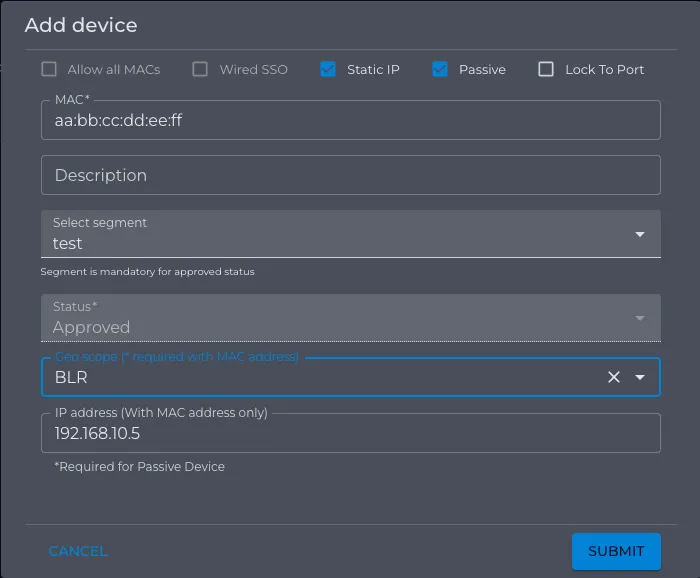
- Optionally, use Bulk Upload to import a CSV list of MAC addresses to be marked as Static IP and Passive.

Day 1 Migration to Nile – Auto Discovery
- Log in to the Nile Control Center.
-
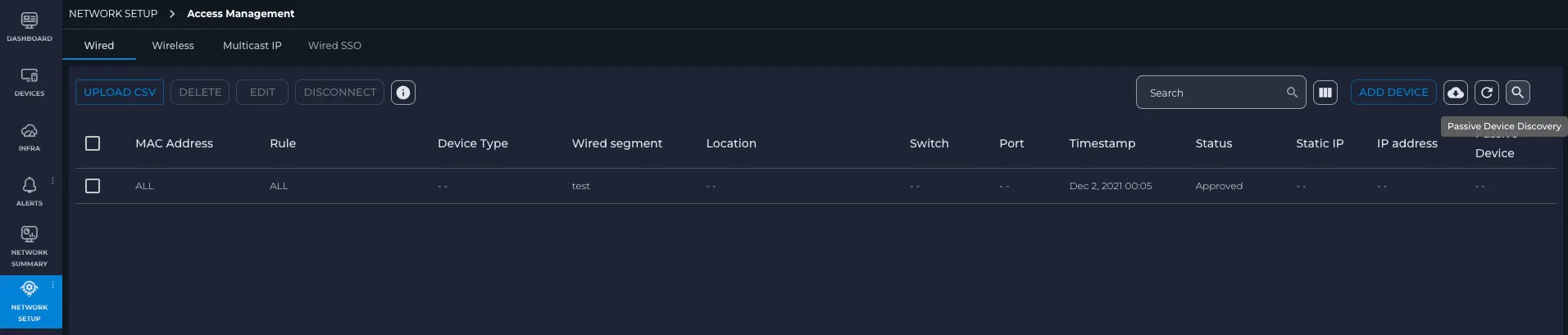
- Navigate to Network Setup > Access Management.
- Select the Passive Device Discovery icon.
- In the drawer that opens, specify an IP address, an IP range, or a subnet up to /24 that passive devices are using within the defined geographical scope.
- Select Scan.
-
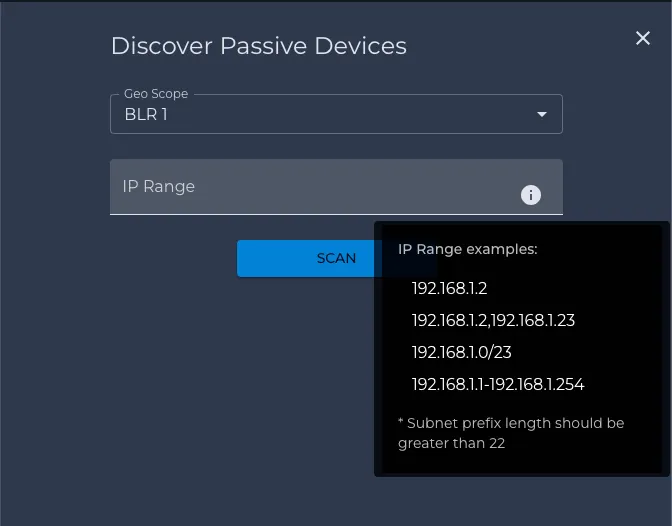
- The NSB initiates auto discovery on switches in that scope and presents a list of MAC addresses for review.
- Approve the discovered devices. Once approved, they are automatically marked as Static IP and Passive.
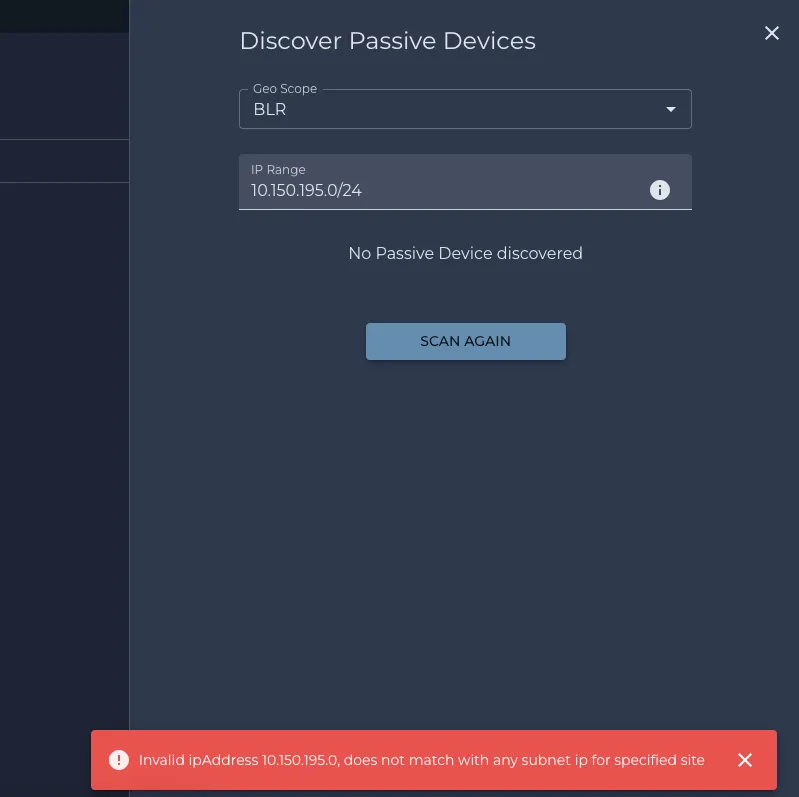
If the IP range provided does not match any subnet mapped to configured segments, the discovery tool will generate an error. Ensure the range matches one of the existing segments.
-
The IP addresses for passive devices are populated in the MAB (MAC Authentication Bypass) list once they are fully learned by Nile switches.
-
Discovery Process
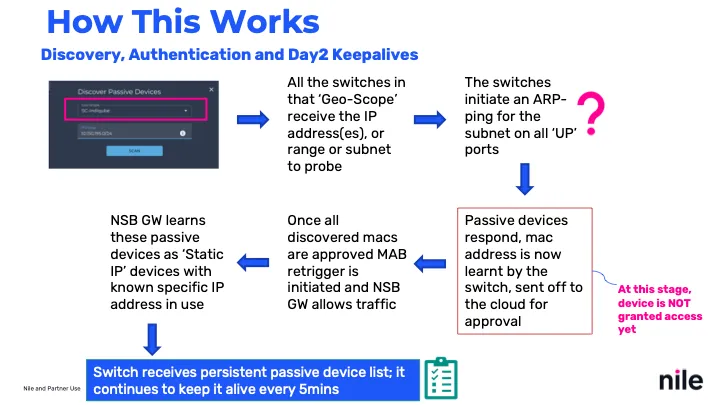
Day 2 Per Device Discovery Tool
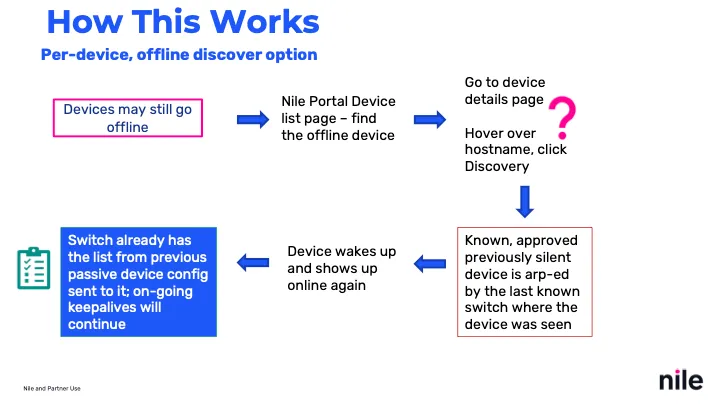
At times, passive devices may appear offline even though they remain physically connected. In this case:
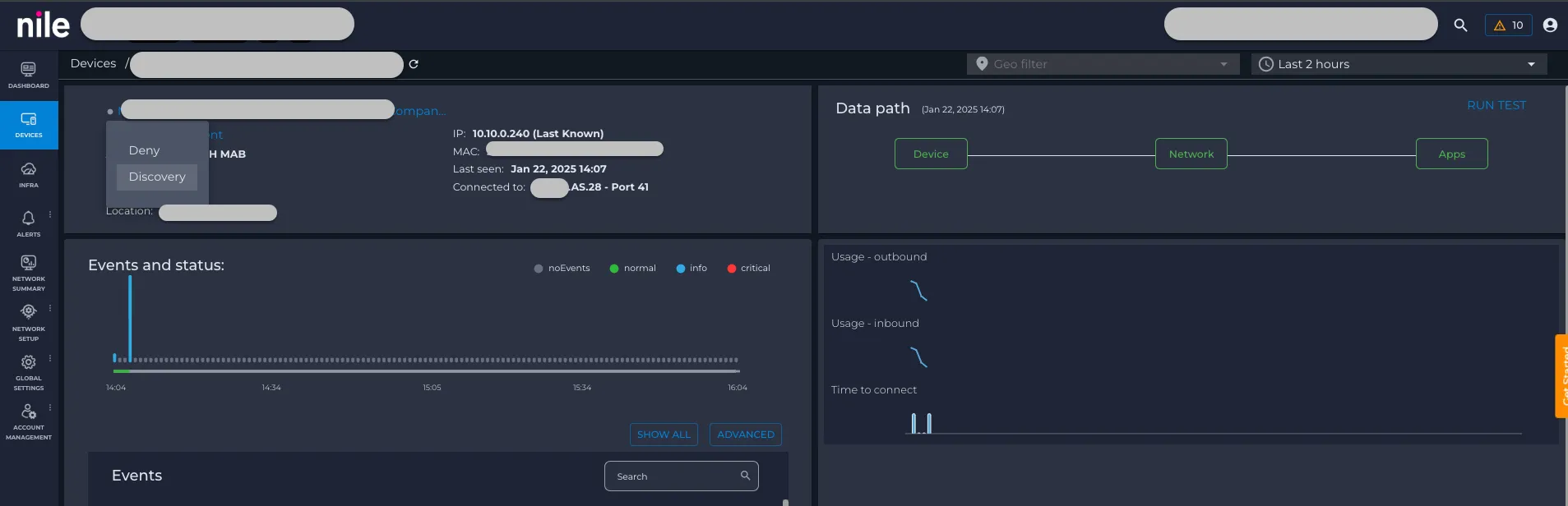
- Go to Devices in the Nile Control Center.
- Select the offline wired device.
- Open the device details page.
- Use the Discover option.
This triggers a one-time auto discovery on the specific switch and port where the device was last connected, using its last known IP address.
Day 2 Discovery Tool - background process
Feature Constraints
- The Nile Service Block software must be upgraded to a supported version. Contact Customer Support to schedule the upgrade.
- Only subnets up to /24 in size (a maximum of 254 IP addresses) can be used for initial discovery at one time.