Disconnecting a Wired Device from Nile Portal
4 min
Use Disconnect to interrupt the current network connection of a wired device. In the Nile Portal, you can disconnect a device from its details page or from the Access Management page.
Disconnect a Device from Its Details Page
- In the Nile Portal, select Devices, and then select the wired device to open its details page.
- Select Actions > Disconnect.
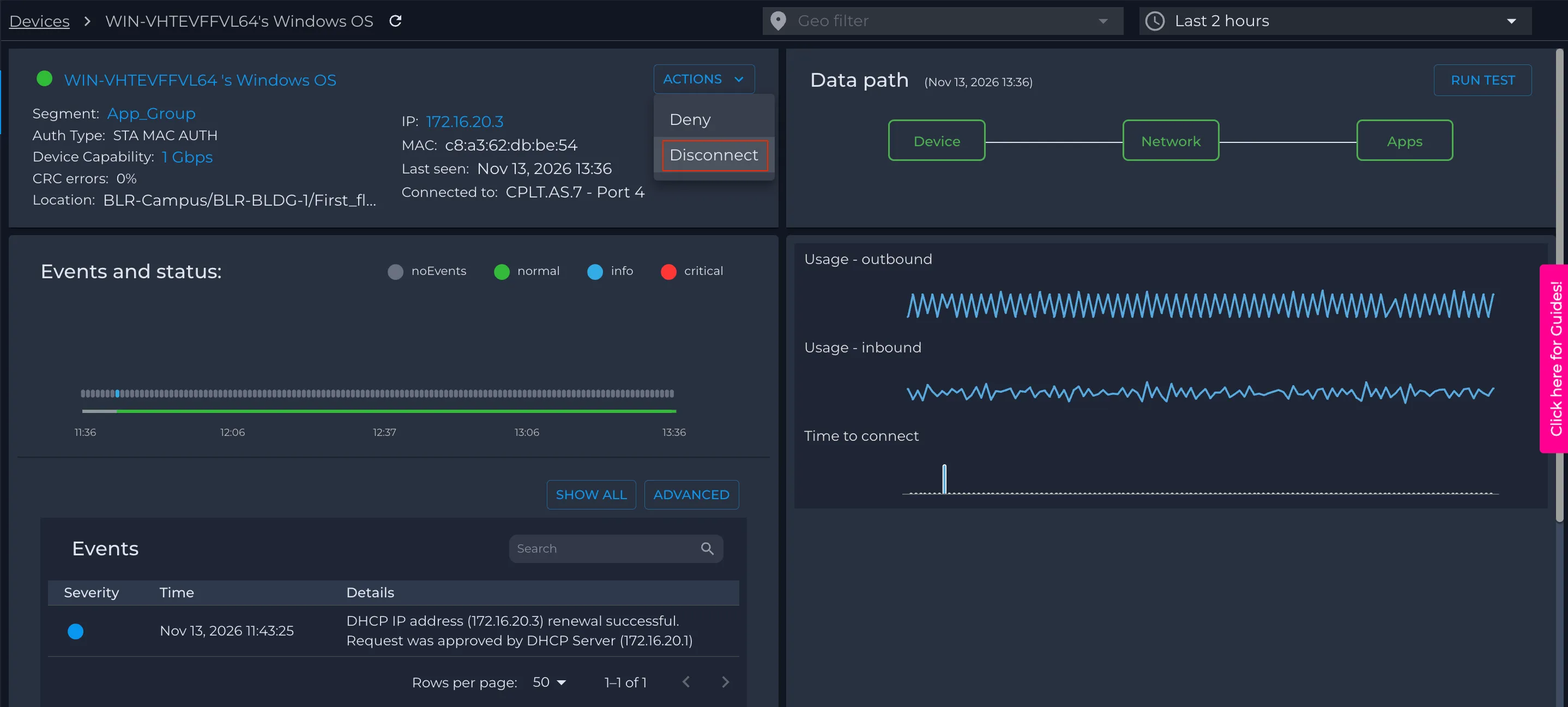
- In the confirmation dialog, select Confirm.
Disconnect Devices from Access Management
- In the Nile Portal, select Network Setup > Access Management, and then select the Wired tab.
- Select the check box next to each device that you want to disconnect.
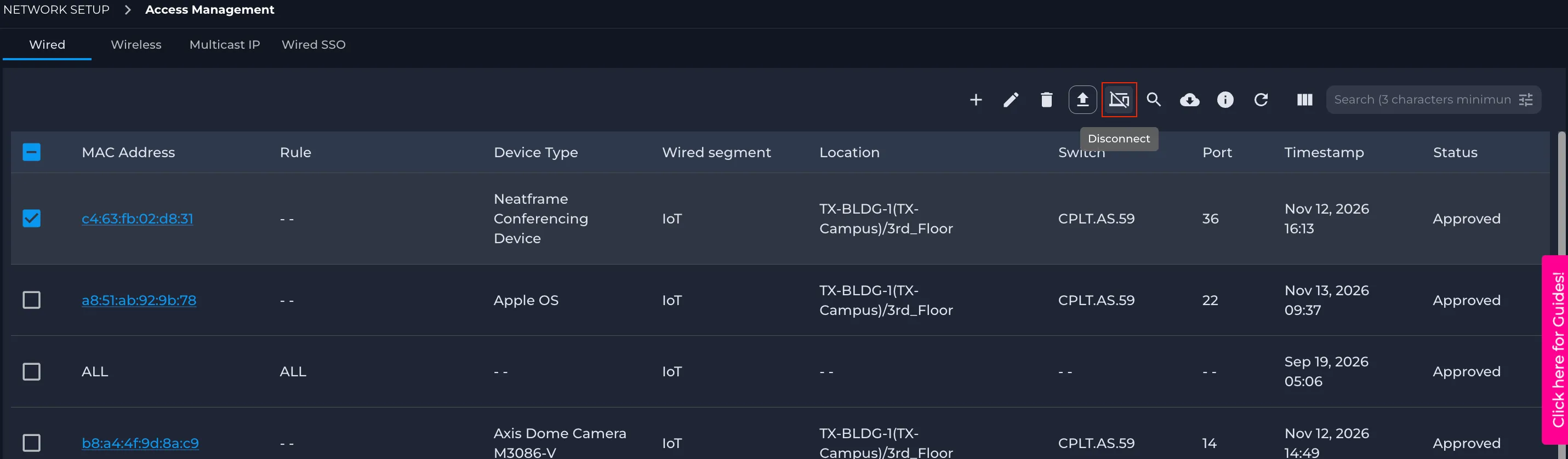
- In the toolbar above the list, select the Disconnect icon.
- In the confirmation dialog, select Yes.
What Happens When You Disconnect a Device
- The Nile Portal performs a Power over Ethernet (PoE) flap on the switch port that the device is connected to. A PoE flap turns PoE off and then back on, briefly interrupting power to a PoE-powered device.
- The Nile Portal then performs a Link flap on the same port. A Link flap brings the port link down and then back up. The PoE flap and the Link flap drop the device’s wired connection. A device that does not use PoE is disconnected by the Link flap alone.
- When the port is up again, the device can restart and reconnect through its normal connection and authentication process.
Note: Disconnection is temporary. It does not block or deny the device from reconnecting.