Infoblox DDNS Integration
Overview
Nile Dynamic DNS (DDNS) keeps DNS records synchronized with DHCP so that device hostname-to-IP mapping stays accurate even when IP addresses change. When Nile DHCP assigns, renews, changes, releases, or expires a lease, it updates the corresponding DNS records automatically.
In DNS, an A record is the forward lookup record that maps a hostname to an IPv4 address, and a PTR record is the reverse lookup record that maps an IP address back to a hostname.
Together, these records allow Nile DDNS to maintain both forward and reverse name resolution automatically. This helps eliminate stale DNS entries, reduces manual administration, improves troubleshooting, and ensures applications, monitoring, and security tools can continue to identify and reach devices correctly even as their IP addresses change.
Configure DDNS integration
Follow these steps to enable the DDNS feature with an Infoblox DNS server:
- Go to Global Settings > Integrations.
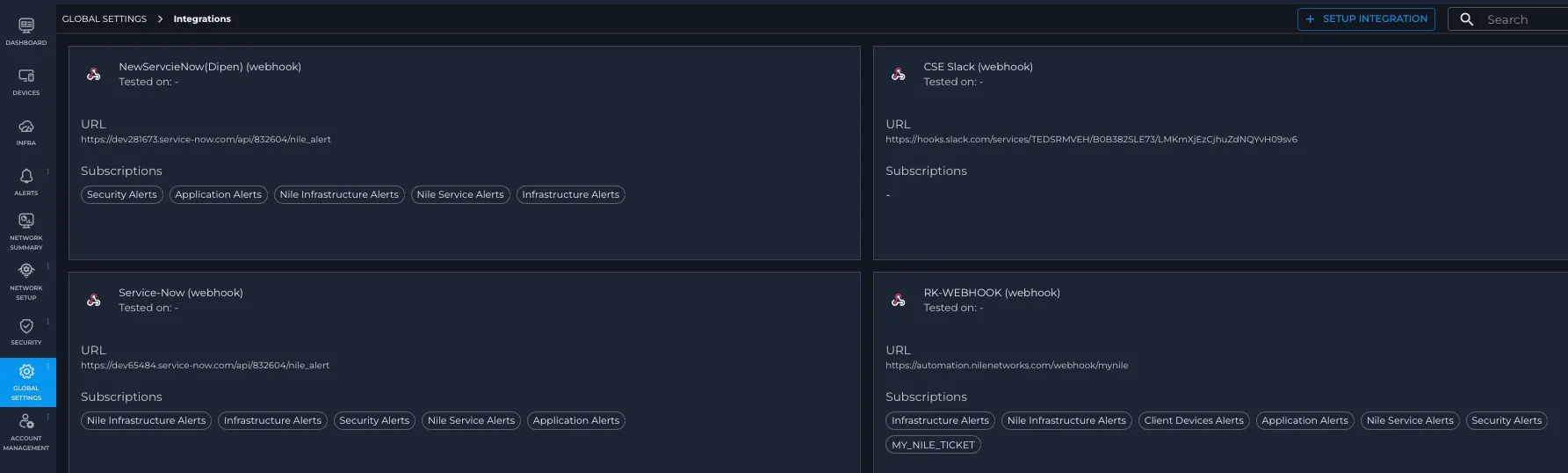
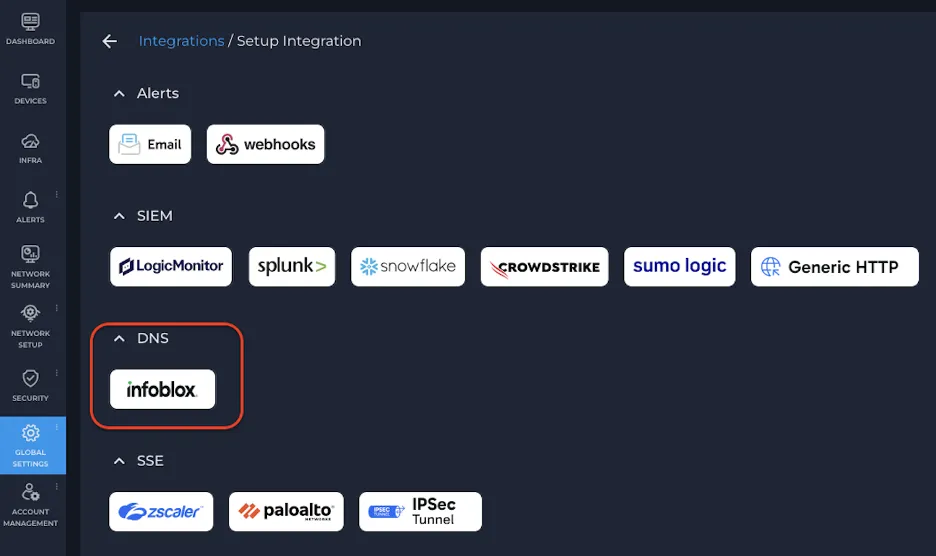
- Click + Setup Integration, then select Infoblox under DNS.
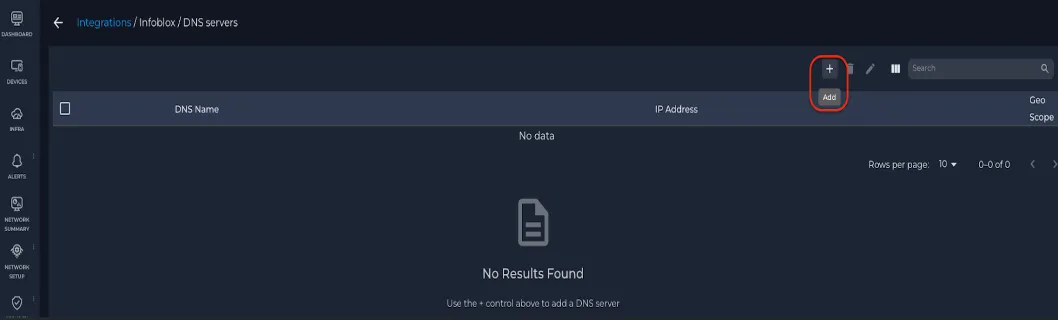
- Click + to add a DNS server.
- Enter the DNS Server Name, DNS Server IP Address, and select the Geo Scope.
- Under the TSIG Authentication section, enter the Key Name, Secret Key, and select the Algorithm.
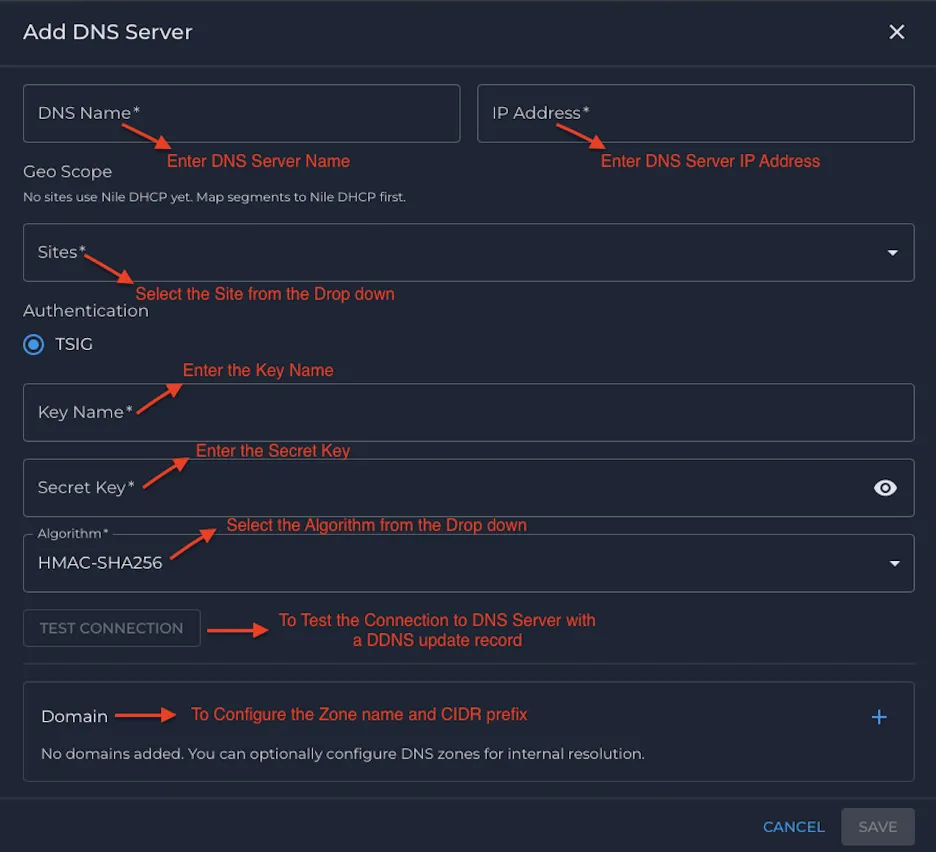
- Click Test Connection to verify connectivity to the DNS server using a DDNS update record.
- Enter the FQDN and IP Address, then click Run Test.
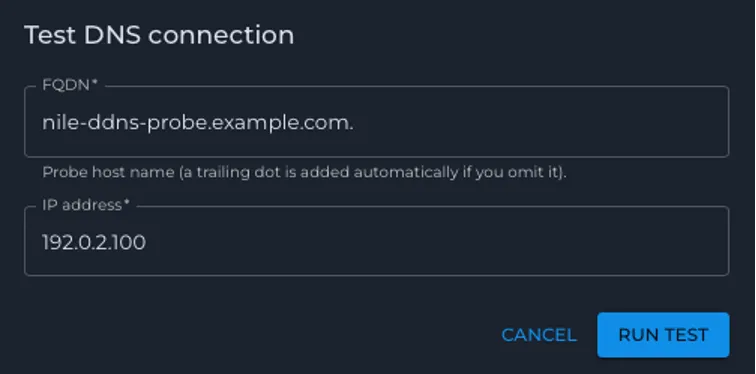
- After the test completes successfully, the client DNS record for hostname and its IP address is dynamically updated on the DNS server.
- In the Domain section, click + to add the required zone names and select the appropriate CIDR prefix from the dropdown. Repeat this step to add additional domains as needed.

- Click Save.