Maintenance Window
A Maintenance Window in Nile Portal is a scheduled period during which you expect planned work that may affect your Nile service, such as software upgrades, network reconfiguration, power outages, or broader facilities maintenance. By explicitly declaring this window, Nile treats any related impact as planned activity rather than an unexpected incident, so performance changes are interpreted in the correct context for both your team and Nile support.
During an active maintenance window, Nile adjusts how service health is evaluated so that planned changes don’t appear as avoidable outages. Network service may still be interrupted, but alerts to your team are suppressed where appropriate, and the maintenance period is excluded from SLA calculations. This avoids unnecessary notifications, reduces noise for support staff, and prevents time being spent triaging issues that are already expected as part of scheduled work.
Create a new maintenance window
- Go to Network Setup → Service Areas → Sites. The Sites panel on the left shows all sites, and when collapsed, each site shows the number of buildings it contains for easier navigation.
- In the Sites list, hover over the site you want to review and click the Edit icon. The main pane updates to show that site’s details with the GENERAL INFO, MAINTENANCE, and TOPOLOGY tabs at the top.
- Open the Maintenance section. You’ll see three tabs: Upcoming, Schedule, and Last 90 Days.
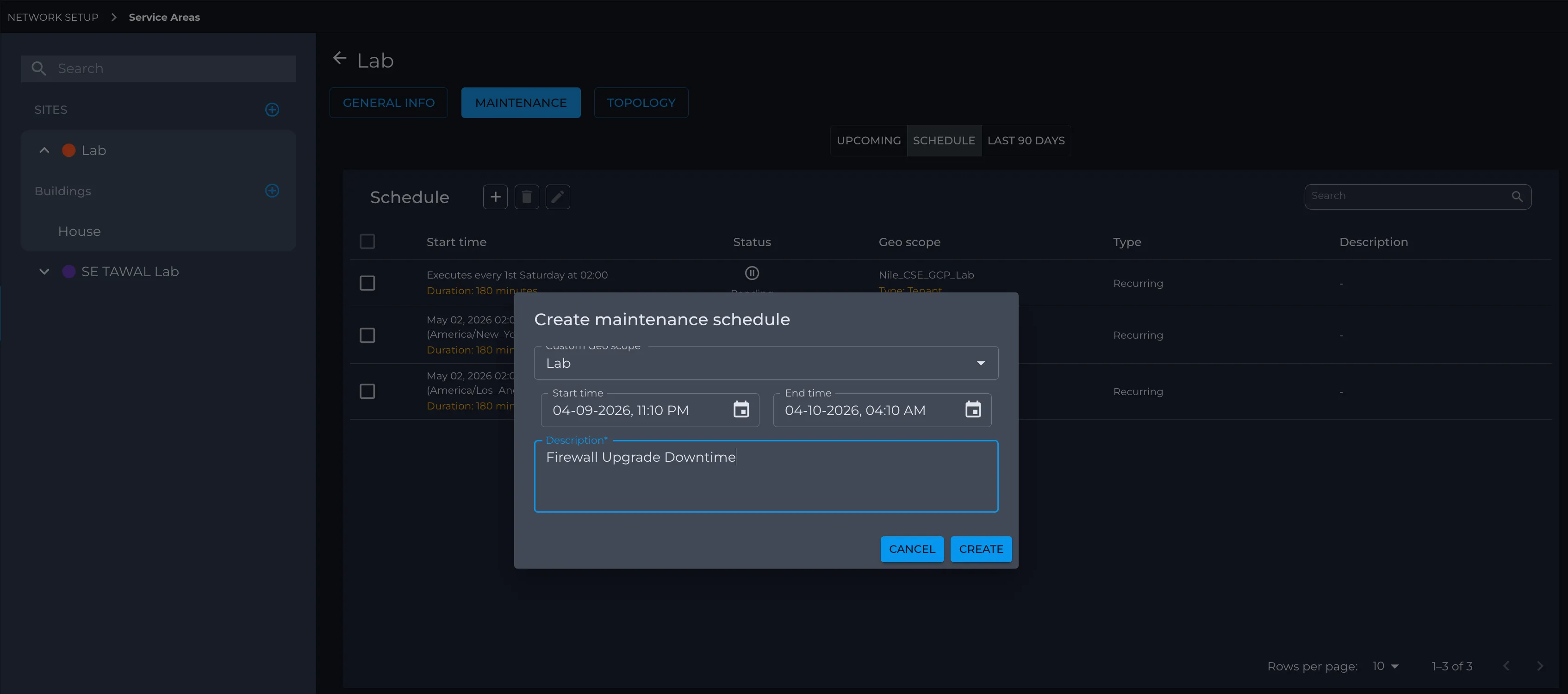
- On the Schedule (or Upcoming) tab, click Add (the Add panel) to configure a new maintenance window.
- In the Add maintenance window panel, fill in:
- Window Type – e.g., planned maintenance/upgrade category.
- Geo Scope – choose the scope (site/building/floor) to which the window applies.
- Start Time and End Time – define when the maintenance starts and ends.
- Reason – short description of what is being done (power work, router change, Nile devices upgrade, etc.).
- Click Save. The new maintenance window appears in Upcoming/Schedule, and during that time, Nile will treat it as planned work (suppressing related alerts, pausing SLAs, etc., as documented).
Edit or delete an existing maintenance window
- Open Service Area → Sites, hover the site, click Edit to reopen the Site Details slider.
- Go to Maintenance → Schedule to see all configured windows.
- Select a maintenance entry. The Edit and Delete actions become enabled for that entry.
- To edit:
- Click Edit → a secondary overlay opens.
- Update Window Type, Geo Scope, Start Time, End Time, and Reason as needed.
- Click Save to apply the changes.
- To delete:
- Click Delete and confirm. The maintenance window is removed from the schedule.
Please ensure your network teams schedule and configure maintenance windows in advance of any planned facility work or Nile Fabric/network changes. This helps keep alerts and SLA calculations accurate, reduces unnecessary notifications, and avoids unnecessary review effort by Nile Support.