CrowdStrike Falcon NG SIEM
11 min
1. Introduction
This guide explains how to integrate Nile with CrowdStrike Falcon NG SIEM so that Nile security and network events are streamed into Falcon for centralised monitoring, detection, and investigation.
2. Audience and prerequisites
2.1 Intended audience
This document is intended for:
- Nile tenant administrators responsible for integrations.
- Security / SIEM engineers managing CrowdStrike Falcon NG SIEM.
- Network and security operations teams consuming SIEM data.
2.2 Prerequisites
Before you start, ensure the following:
- An active Nile tenant with SIEM integration enabled.
- Access to the Nile Portal (Cleo) with permissions to configure Global Settings → Integrations.
- A CrowdStrike Falcon environment with the NG-SIEM / Falcon LogScale data connector capability, and permissions to create Data Connectors (Nile Access Service Data Connector).
3. Configuring CrowdStrike Falcon NG SIEM
This section focuses on setting up the data connector in Falcon so Nile can send events to it.
3.1 Create and configure a Data Connector
- Log in to your CrowdStrike Falcon console as an administrator.
- Navigate to Data Connectors (NG-SIEM / Falcon LogScale).
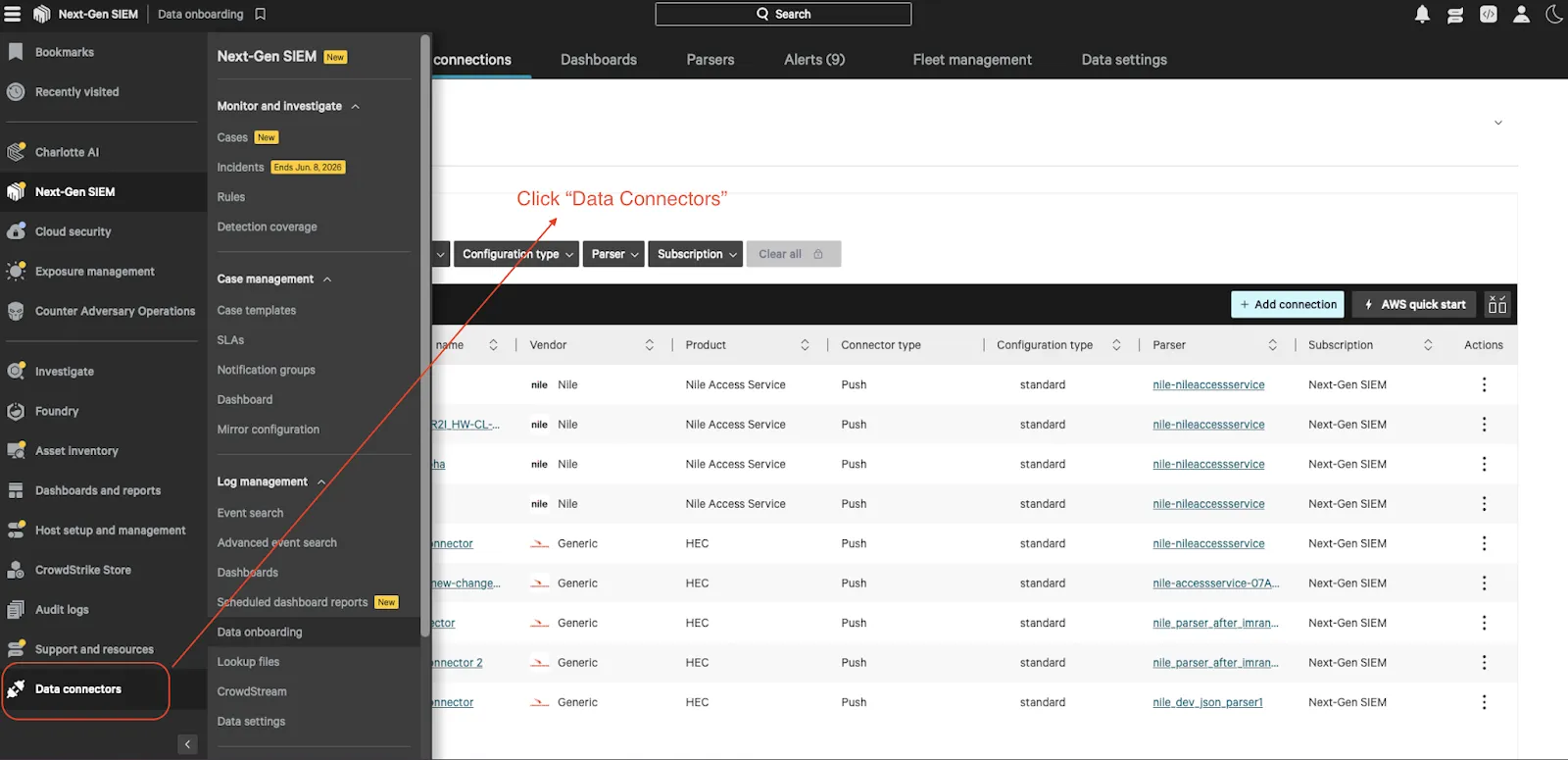
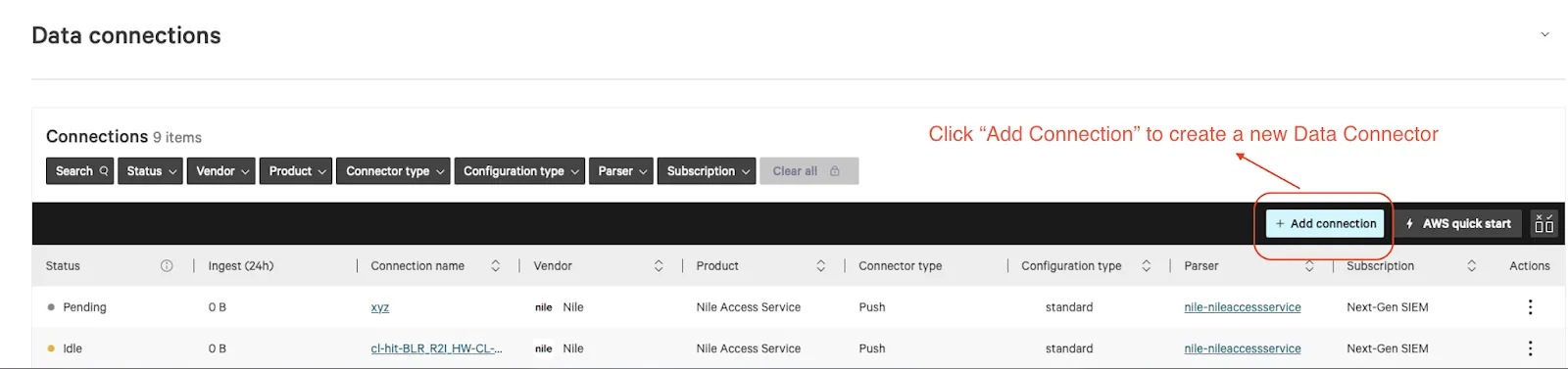
- Create a new Data Connection for Nile (e.g., name it “Nile Data Connector”).
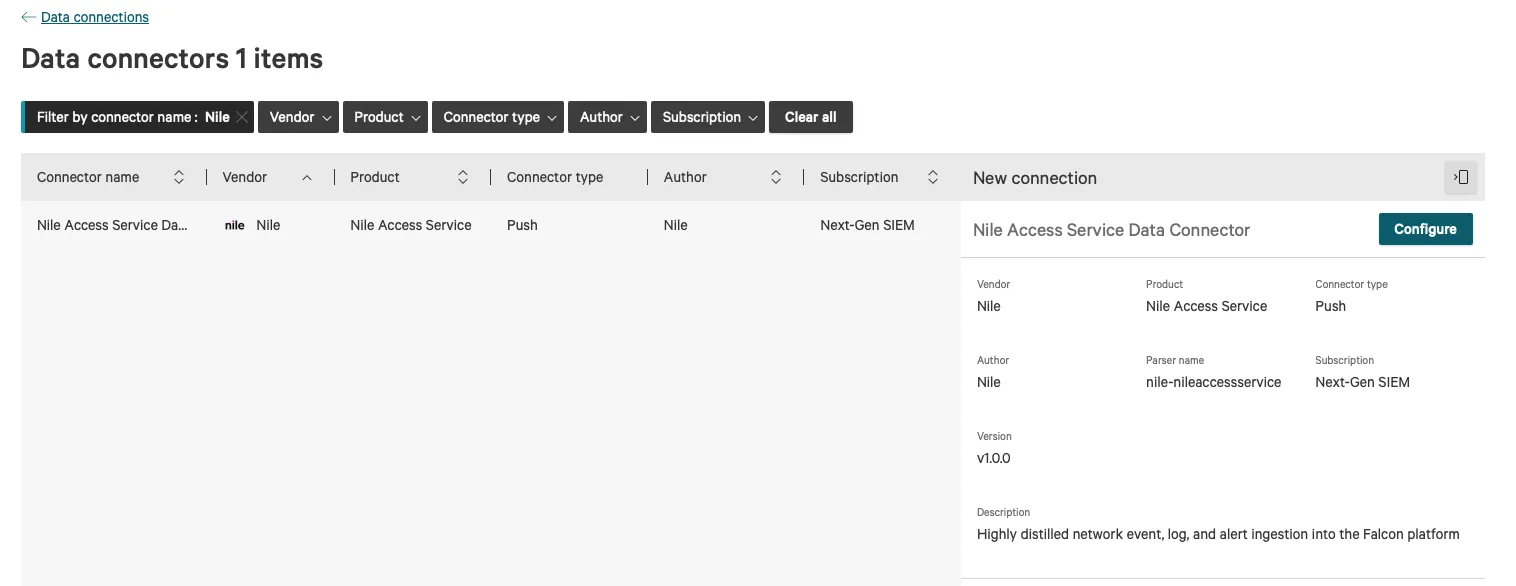
- Click on “Filter by connector name”, search for “Nile”, and apply the filter.
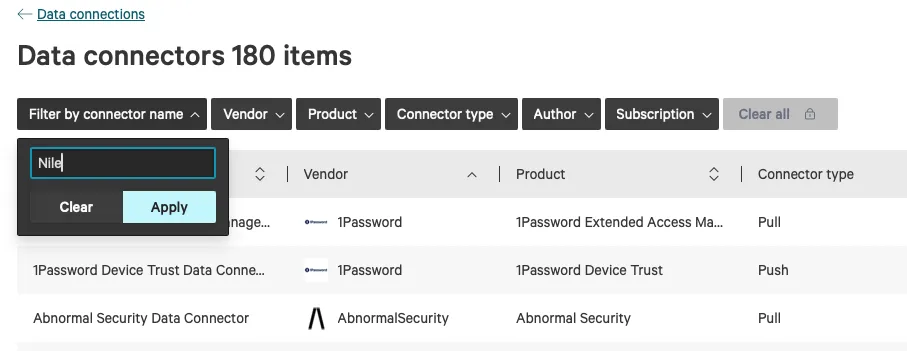
- Select the connector type as “Nile Access Service Data Connector” and click “Configure”.
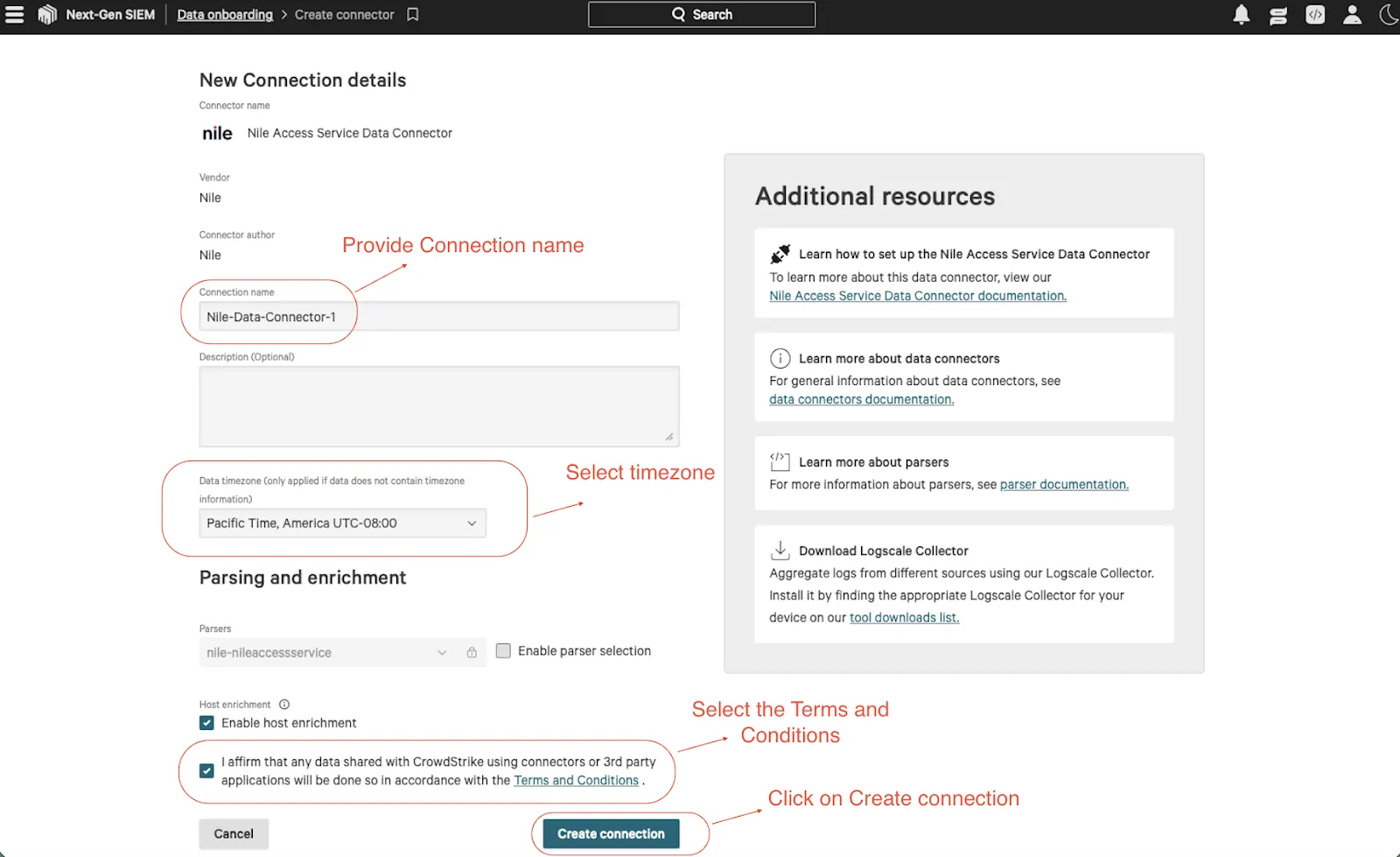
- In the “New Connection details” window:
- Provide a connection name and description (optional)
- Select a timezone for your data. This will be applied to event data that does not include timezone information.
- Host enrichment is enabled by default (optional). If needed, you can disable it by clearing the checkbox.
- Accept the Terms and Conditions, then click “Create connection”.
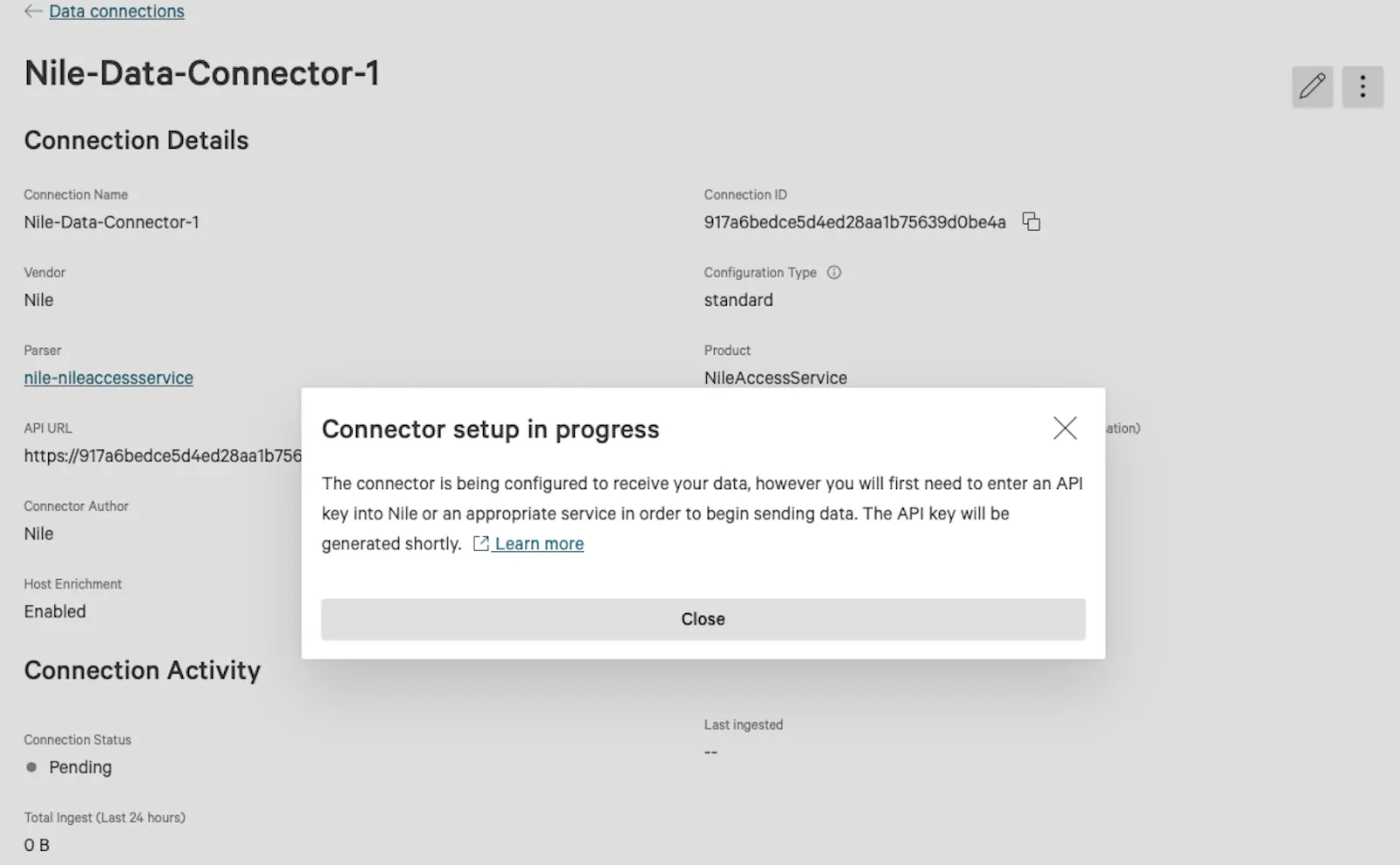
- A banner message appears in the Falcon console indicating that the connector setup is in progress. Click Close.
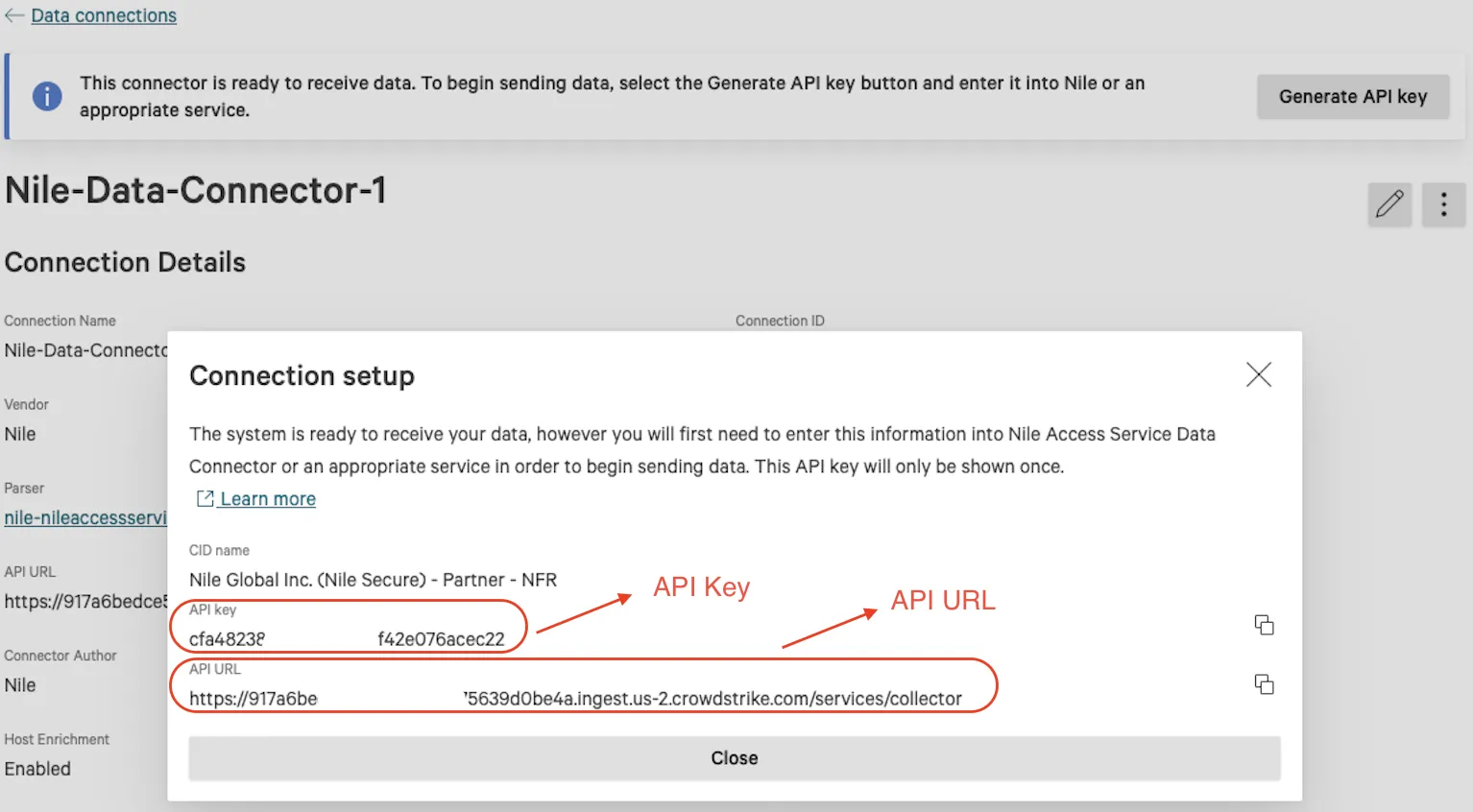
- A notification message appears at the top of the screen indicating that the connector is ready to receive data. Click “Generate API Key” to create the API Key.
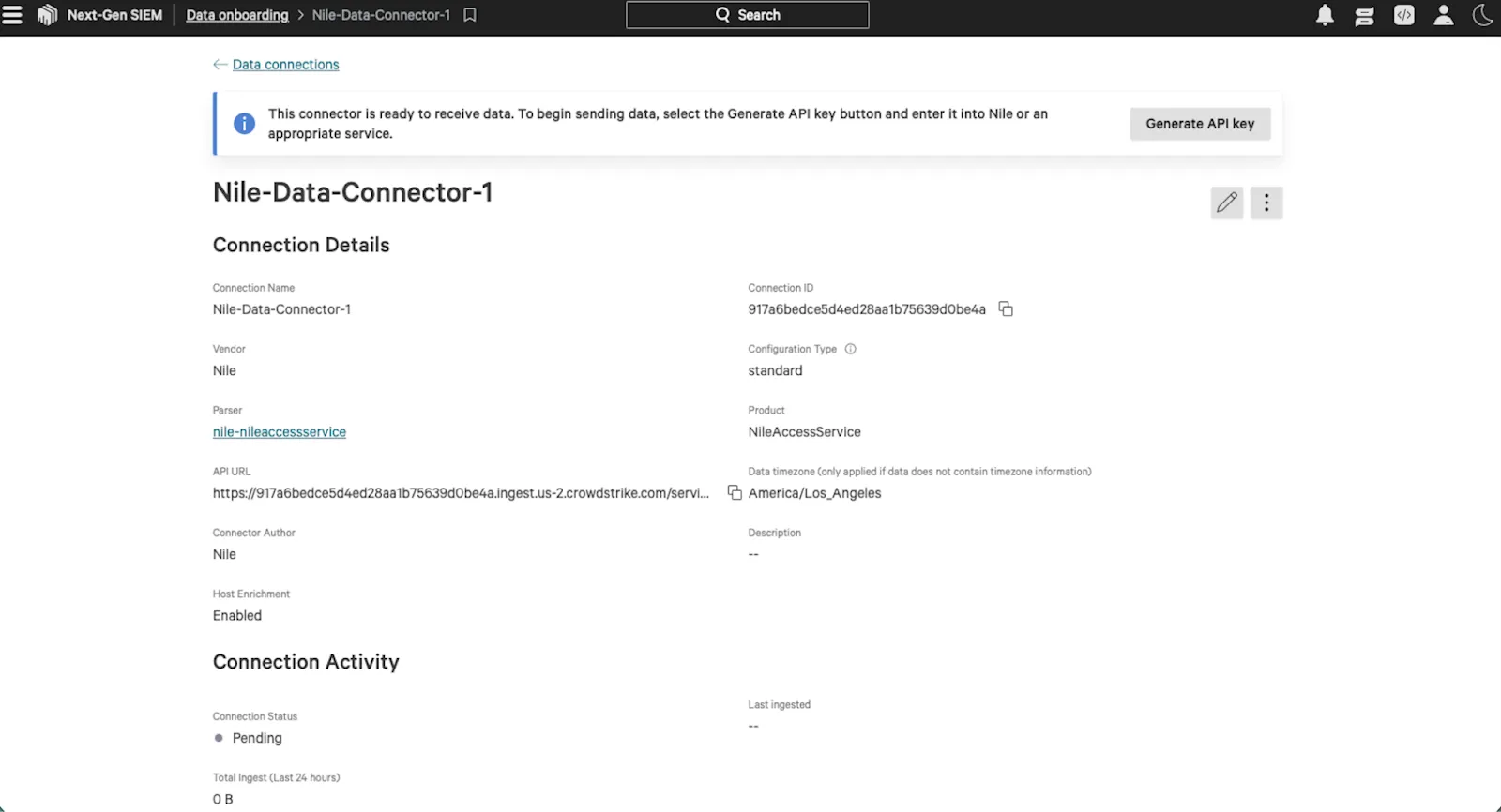
- This step generates the API Key and API URL as shown below. Copy and securely store the API Key now, as it is displayed only once and cannot be retrieved later. Click Close to exit the window.
4. Configuring Nile to send data to CrowdStrike
4.1 Login to Nile Portal
- Log in to the Nile Portal with an admin account.
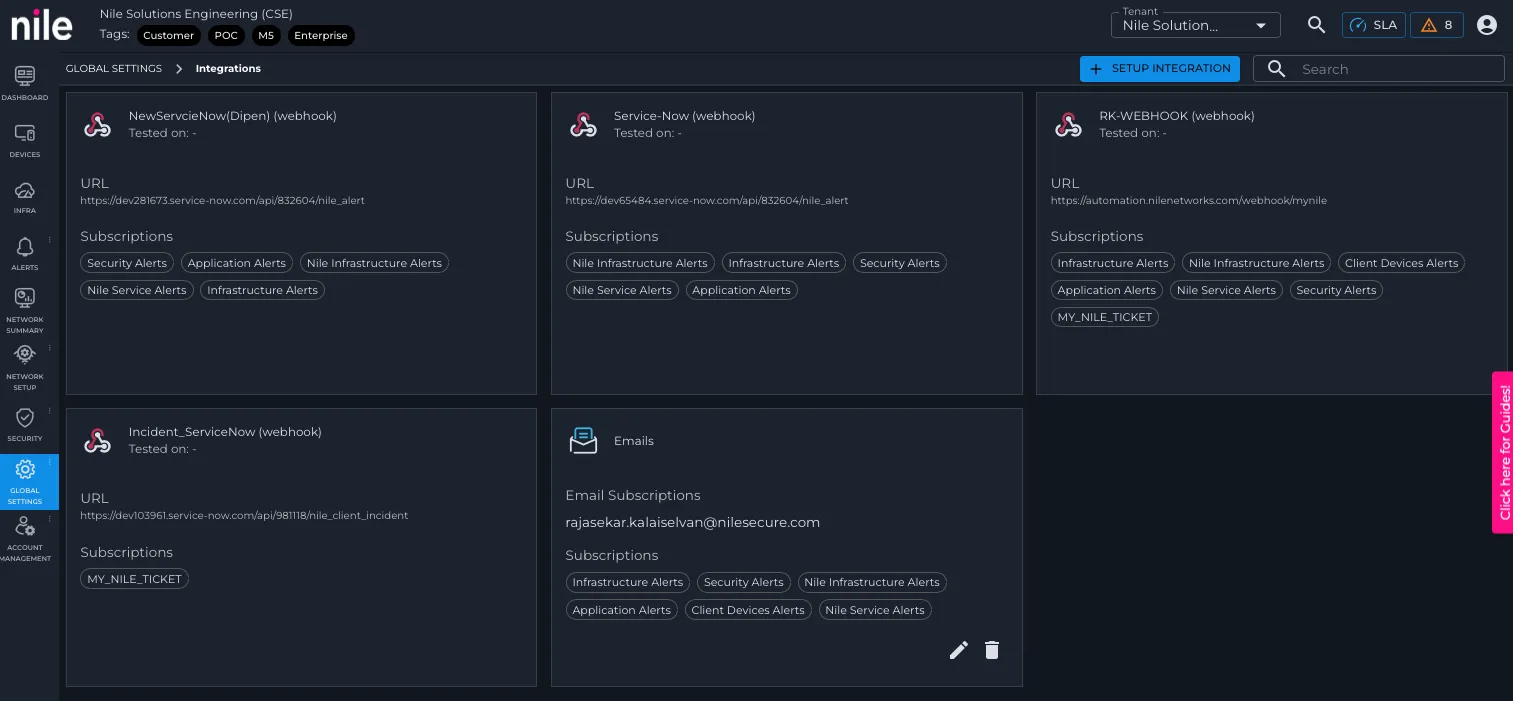
- From the left navigation, go to Network Setup, then open Global Settings.
- Click the Integrations tab.
4.2 Add the CrowdStrike SIEM integration
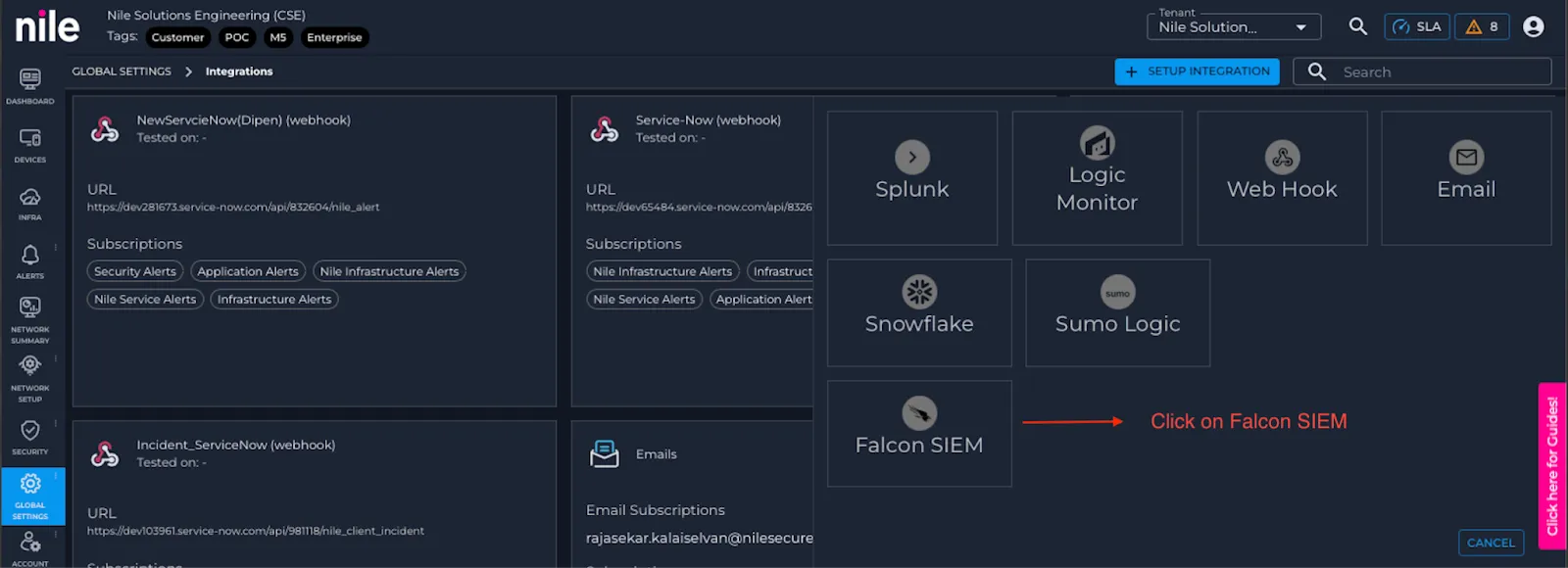
- Click Setup Integration or the “+” (Add) button.
- In the list of SIEM options, select Falcon SIEM.
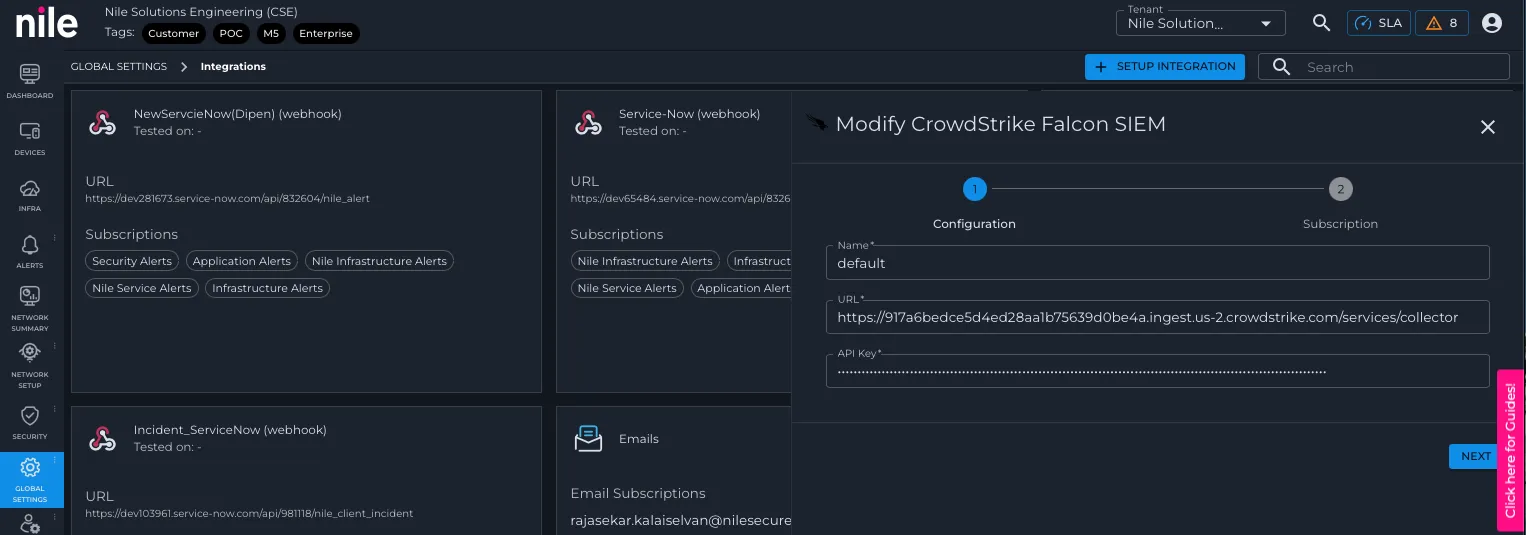
- On the CrowdStrike integration form in Nile
- Name: Set the Name to default. Nile uses the SIEM connection named “default” as the primary path for sending events out.
- API URL: Paste the API URL exactly as shown in the Falcon Data Connector page (Nile Access Service Data Connector). This must match the URL CrowdStrike shows in its Data Connector configuration.
- API Key: Paste the API key generated for the Falcon Data Connector.
- Click Next to proceed to the event selection.
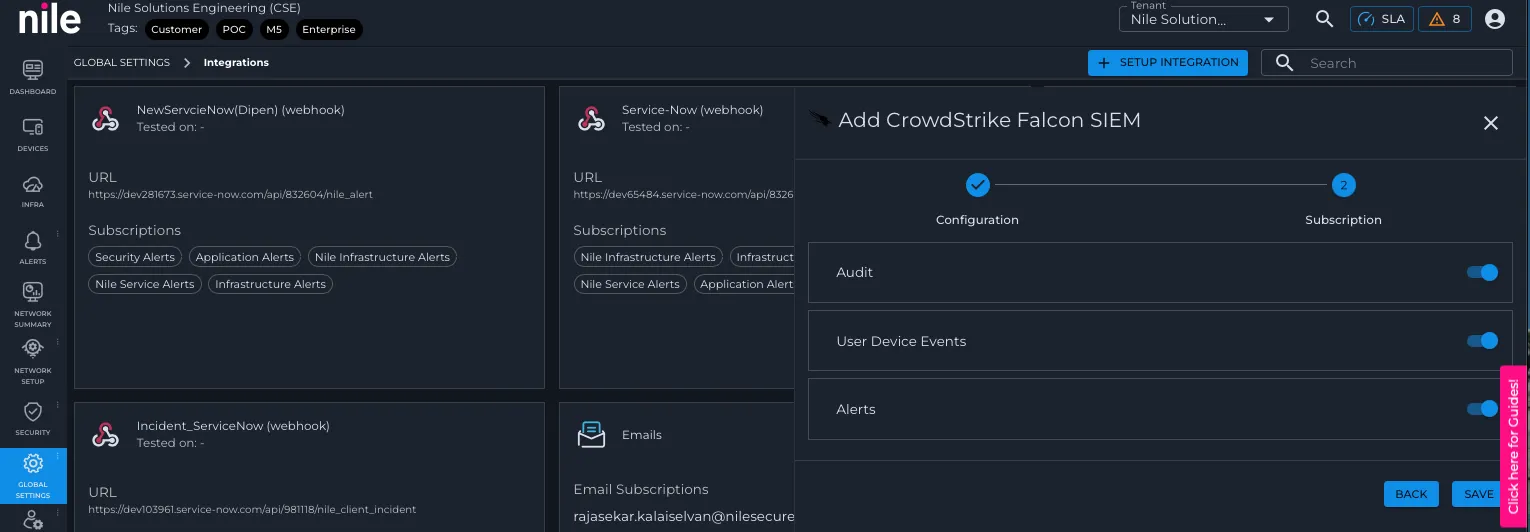
- Select Nile event categories to send to CrowdStrike.
- Enable the toggle for Audit, User Device Events, and Alerts as required.
- Click Save to create the integration.
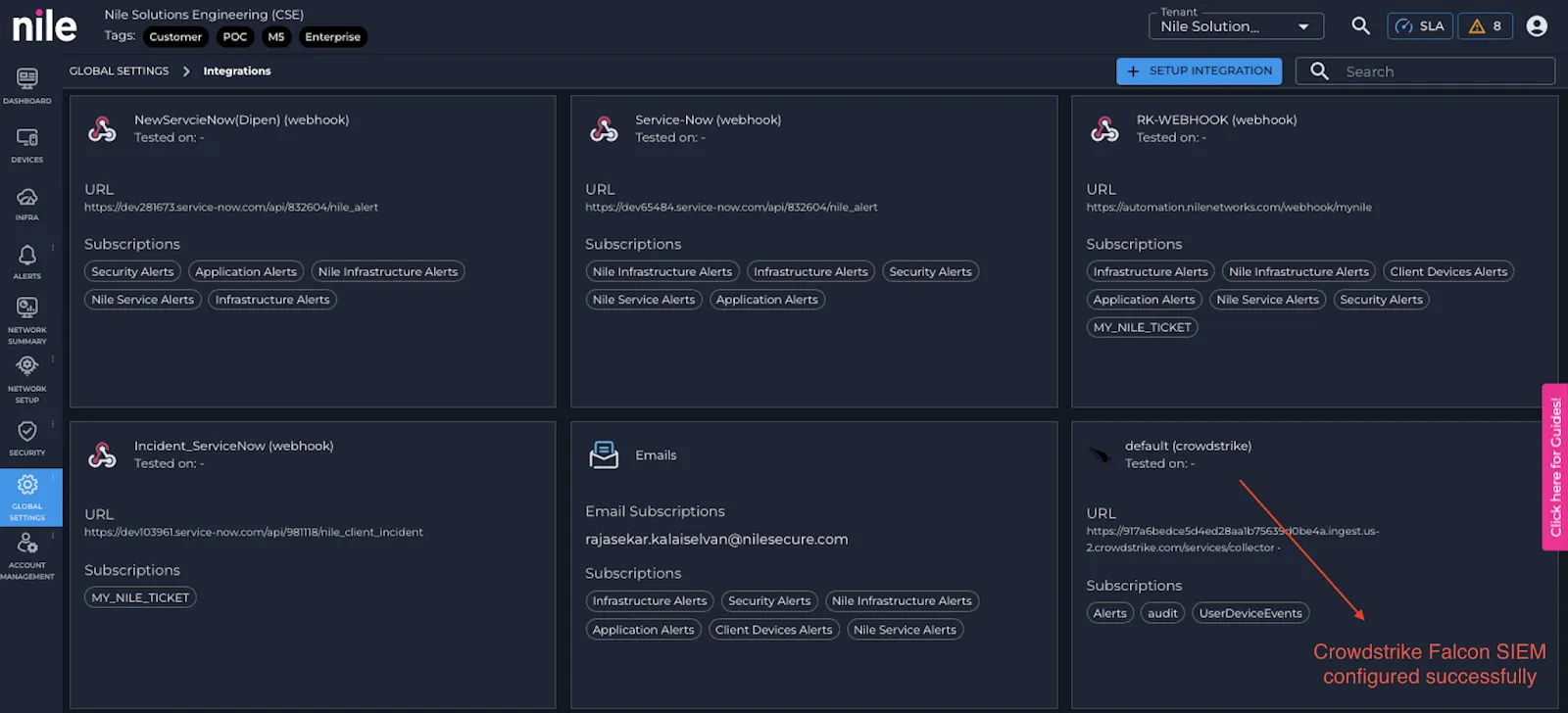
- After saving, you should see a CrowdStrike tile in the Integrations page
4.3 Test the integration from Nile
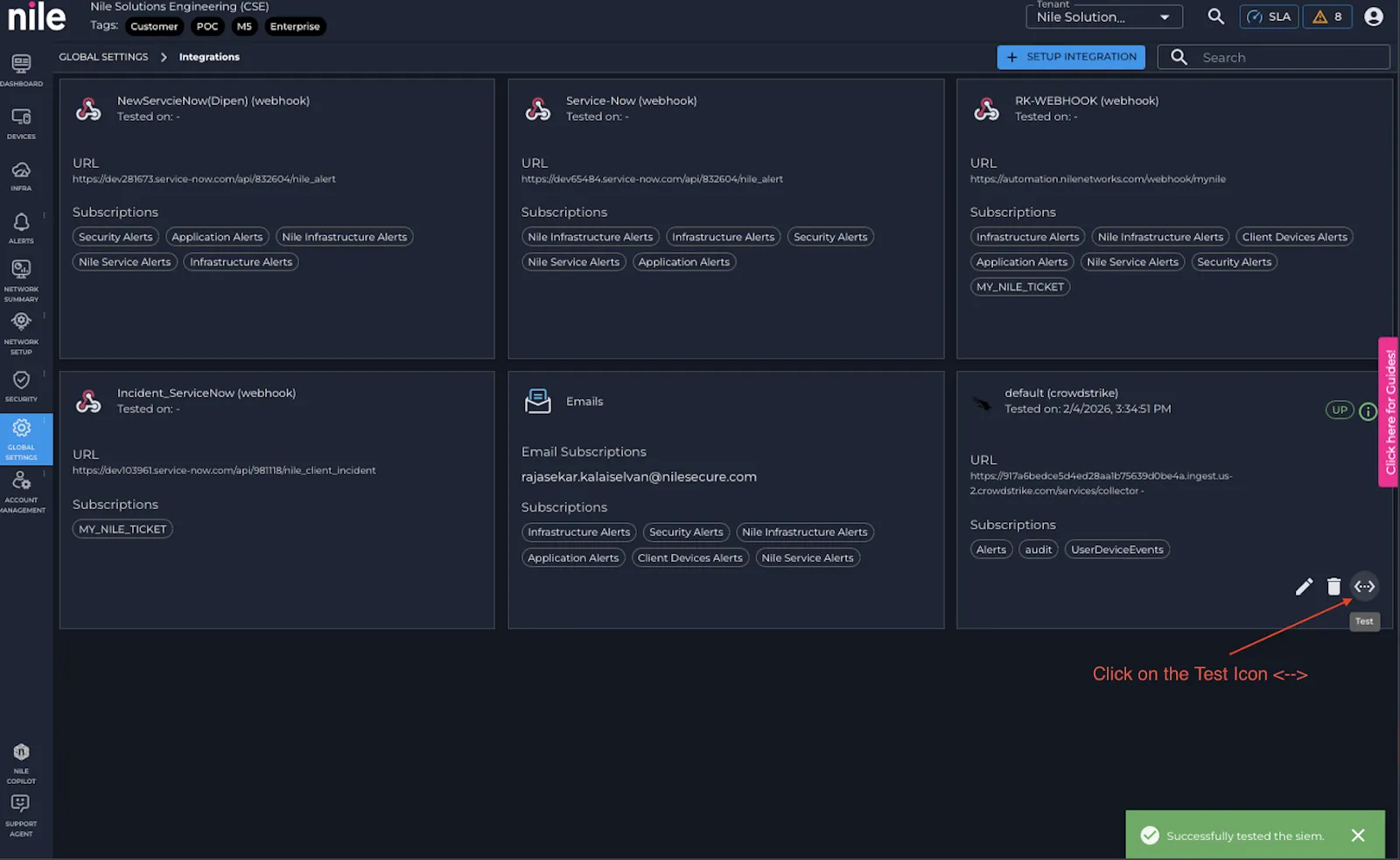
- On the CrowdStrike tile, click the Test icon <->.
- Wait for the test to complete.
- Green status means Nile can reach the Falcon Data Connector, and the credentials/URL are valid.
- Red or failure means you should:
- Confirm the Falcon Data Connection is enabled and running in the Falcon console (Data Connector page).
- Double-check the API URL and API key in Nile exactly match what’s shown in Falcon.
- Ensure the integration Name is the default if this is your primary SIEM stream.
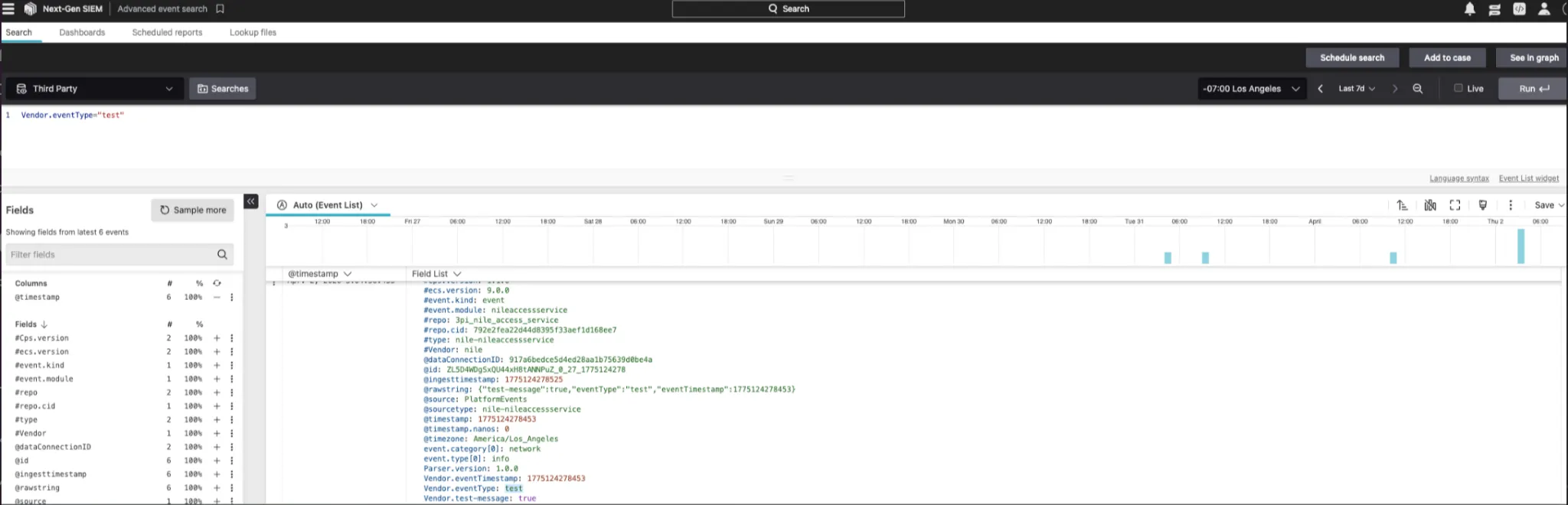
- If the test is successful, the test message will appear in the CrowdStrike Event console.
- Search for Vendor.eventType="test" to locate and verify the test message.
- The test event was successfully received and processed by the system.