Slack Integration
Integrate Nile Alerts with Slack
Nile can deliver alert notifications to a Slack channel using a Slack incoming webhook. You create the webhook in Slack, add it as a webhook integration in the Nile Portal, and then enable the alert categories you want delivered.
Overview
Slack is configured as a webhook destination in the Nile Portal. No API calls or scripting are required. If you also send alerts to another system such as ServiceNow, that is configured as a separate webhook destination with its own subscriptions.
Prerequisites
- Administrator rights to the Nile Portal.
- Permission to create apps and incoming webhooks in your Slack workspace.
- The Slack channel that should receive Nile alert notifications.
Treat the Slack webhook URL as a secret. Anyone with the URL can post to the channel. Do not publish it, commit it to source control, or include it in support tickets.
Step 1: Create a Slack incoming webhook
- Sign in to Slack and go to https://api.slack.com/apps. Any apps already created in your account are listed here.
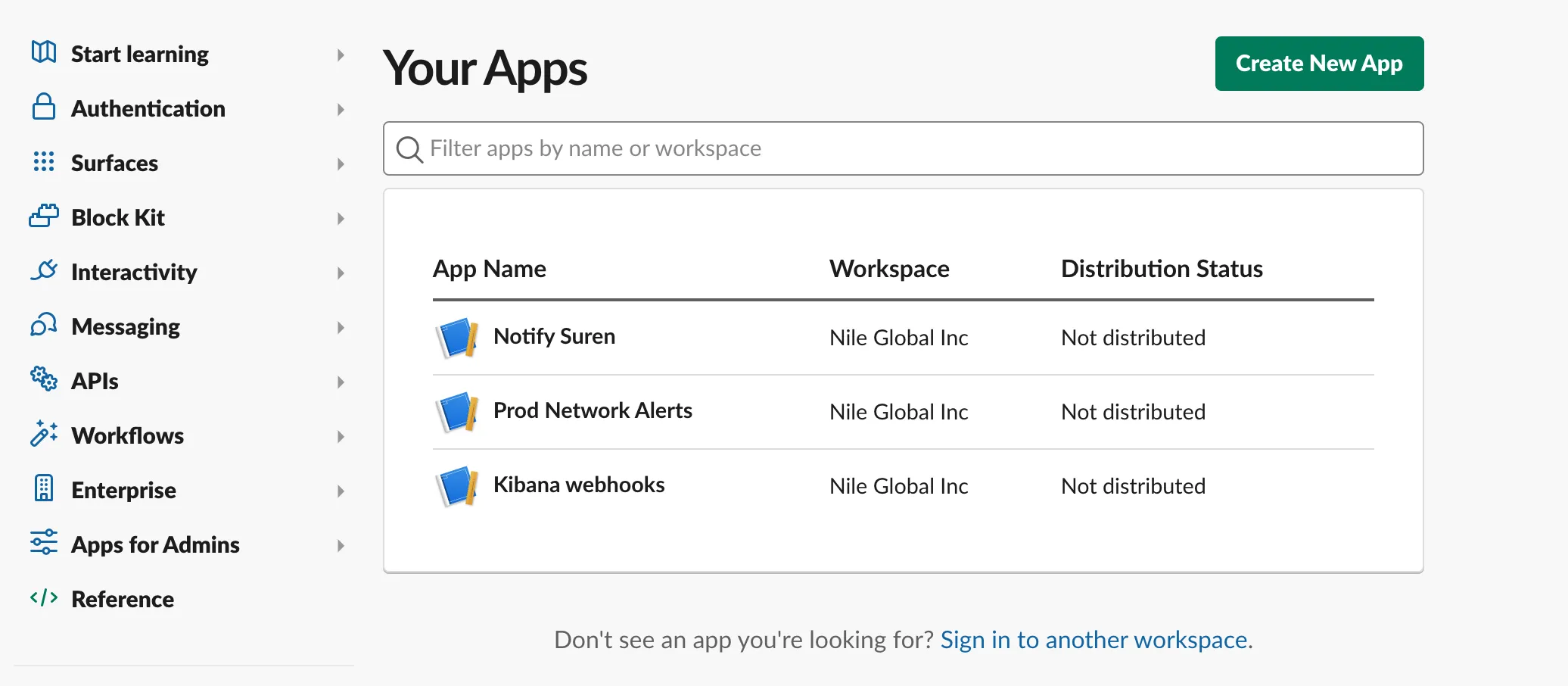
- Click Create New App, or open an existing app used for alert notifications.
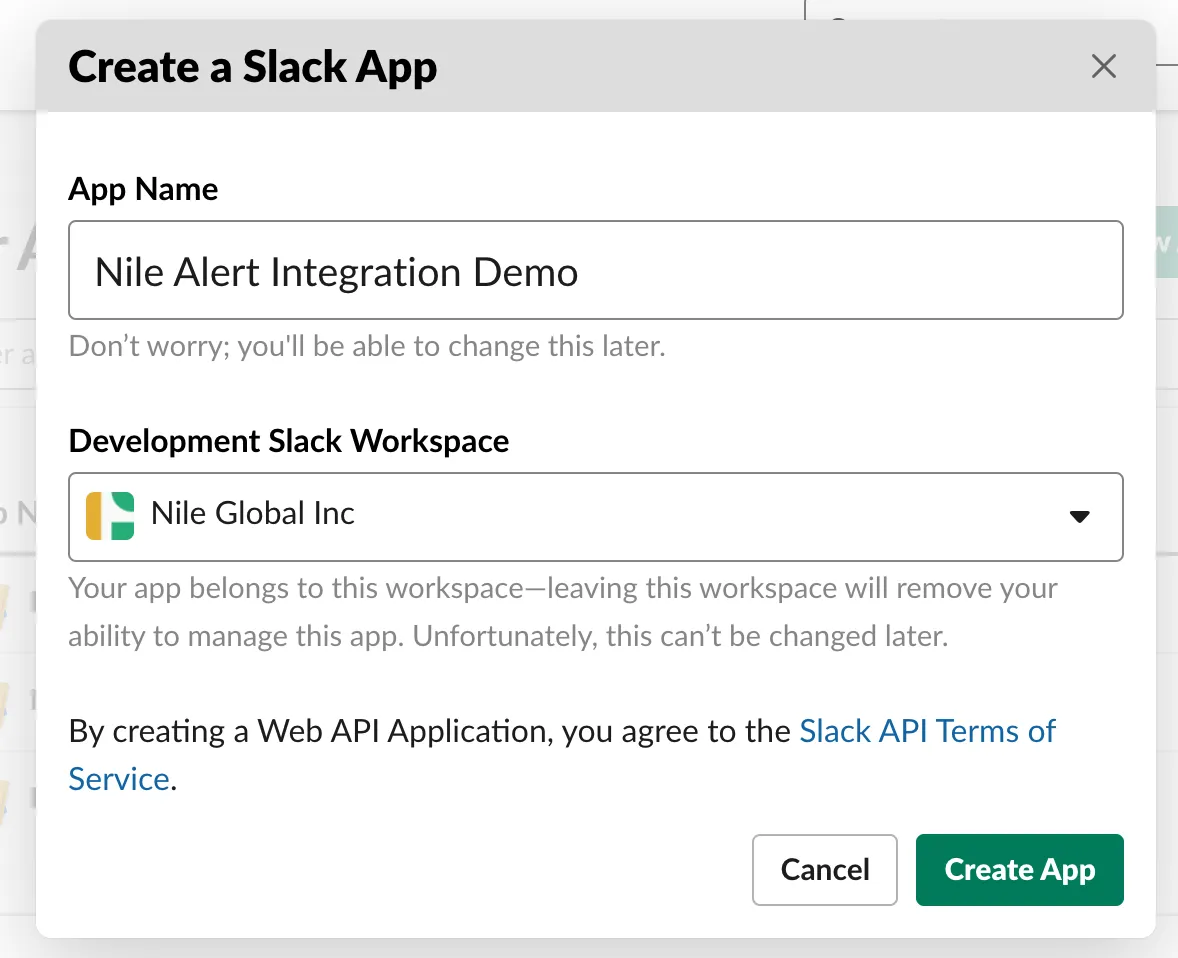
- Enter an app name, select the target Slack workspace, and click Create App.
- Under Features, click Incoming Webhooks and toggle the feature on.
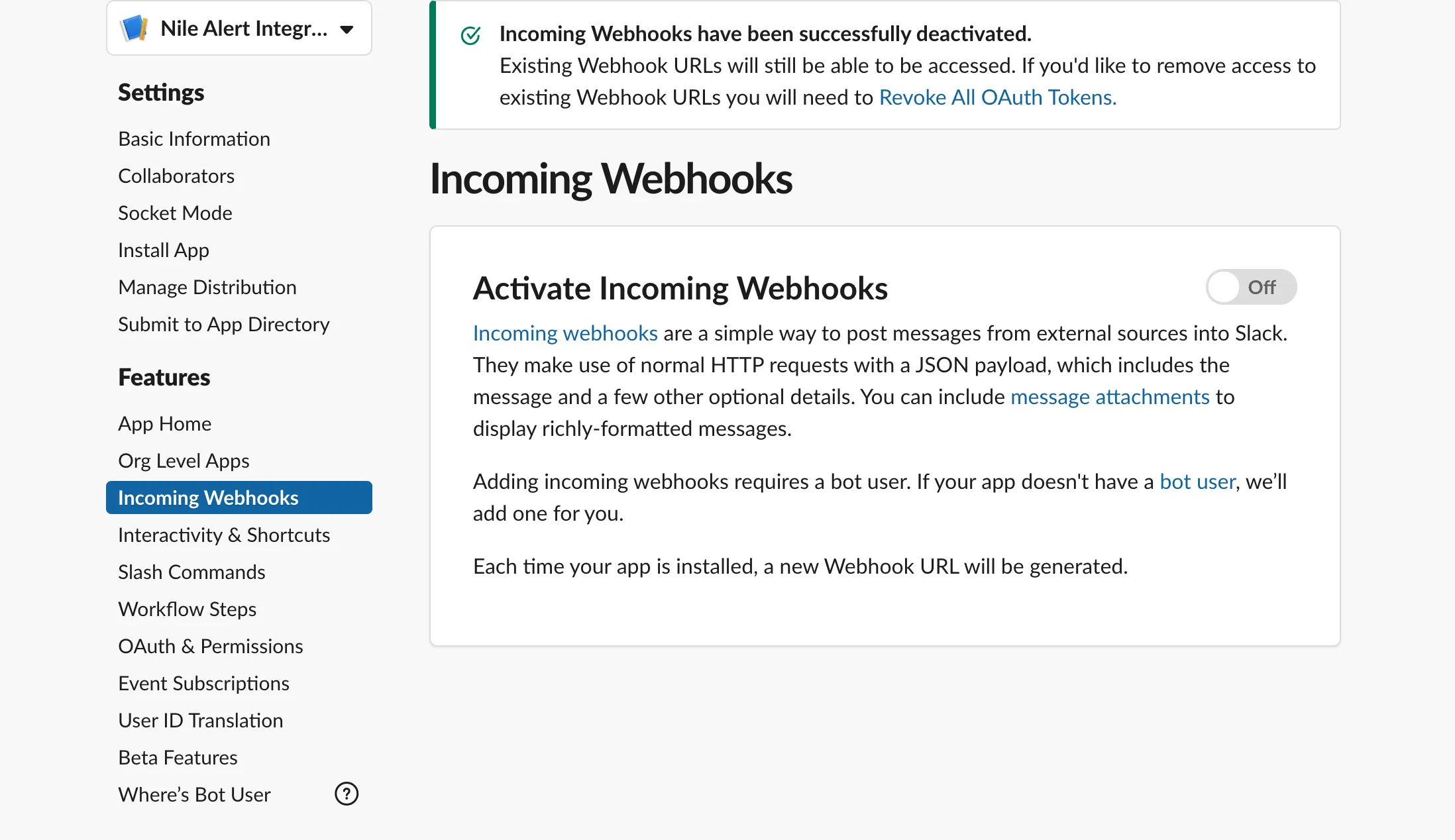
- Click Add New Webhook to Workspace.
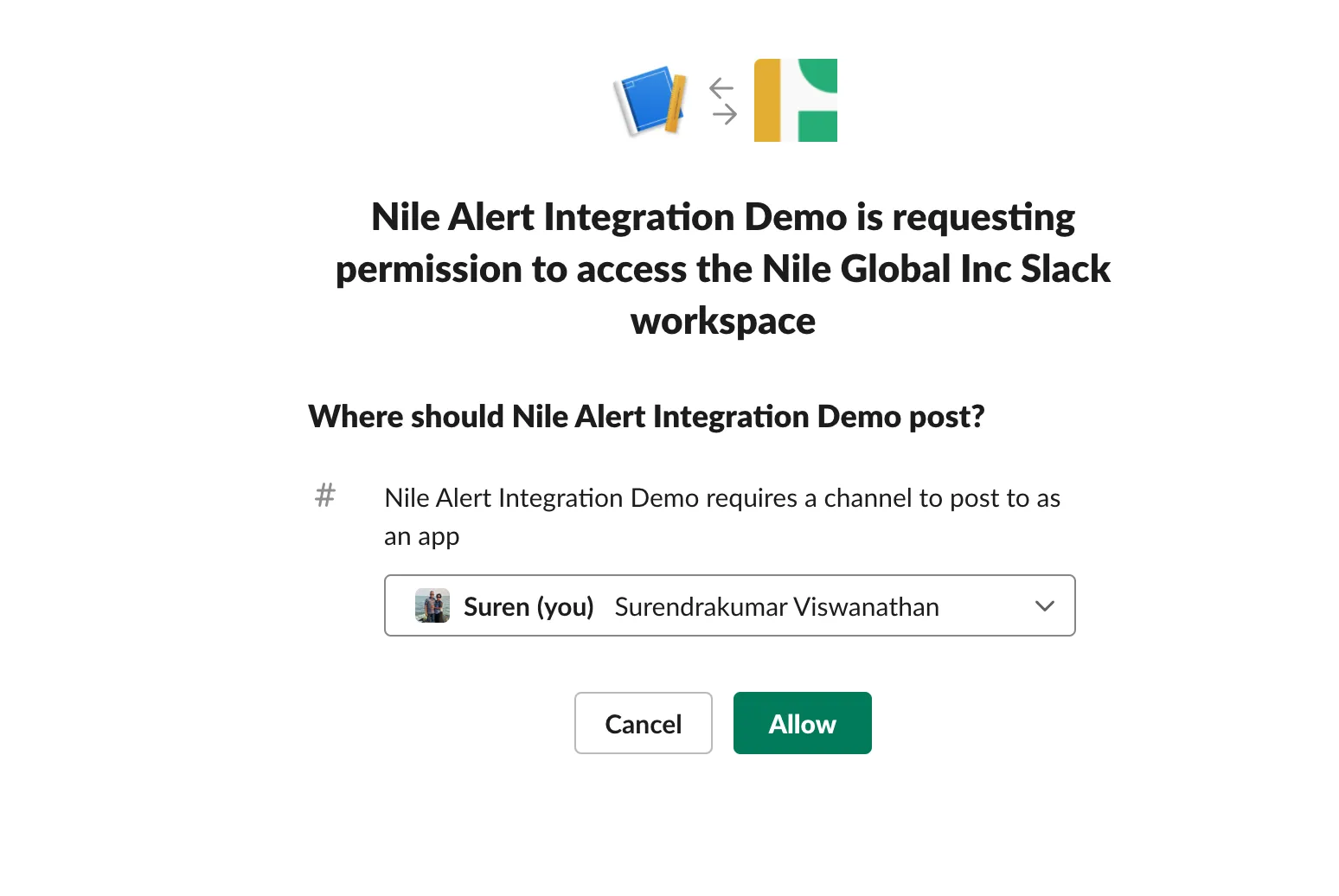
- Select the channel that should receive Nile alerts, then click Allow.
- Copy the generated webhook URL and store it securely.
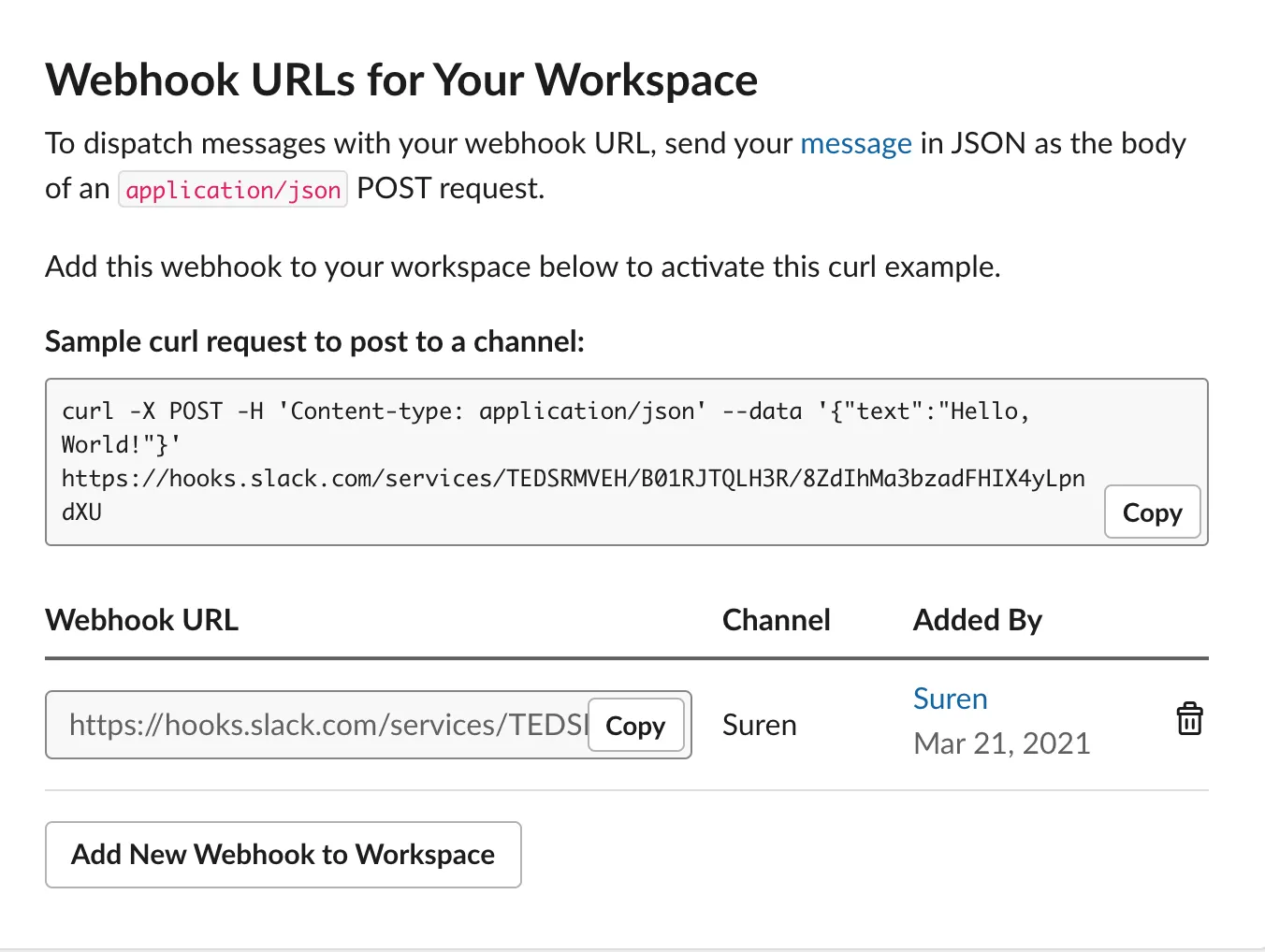
An incoming webhook posts only to the channel selected during authorization. To deliver alerts to more than one channel, add a separate incoming webhook for each channel. A single Slack app can hold multiple webhooks.
Step 2: Add the Slack webhook to the Nile Portal
- Log in to the Nile Portal with an administrator account.
- Navigate to Global Settings > Integrations.
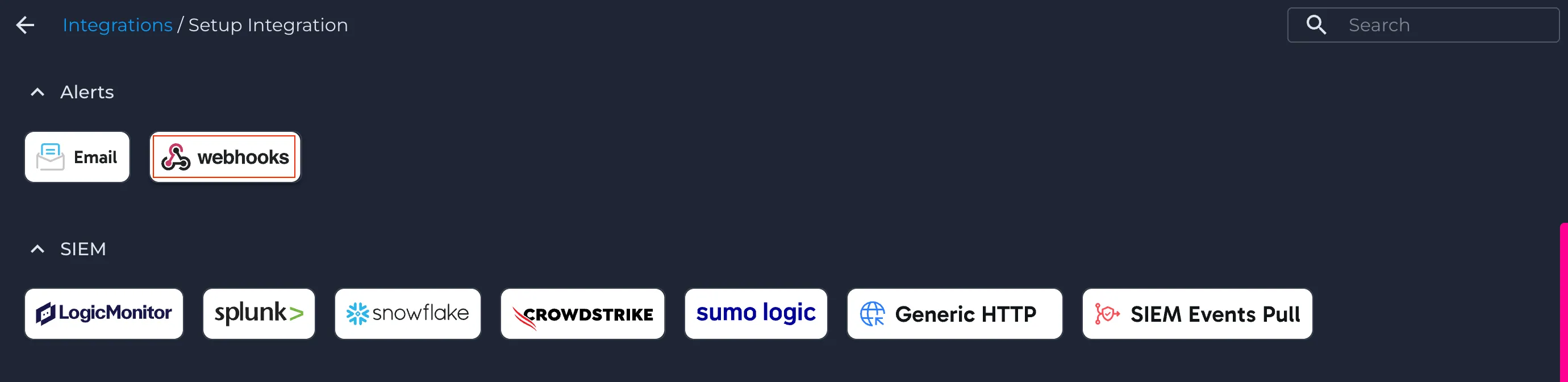
- Click the + icon to add a webhook.
- Complete the following webhook details and click save to confirm that the new destination appears in the integrations list.
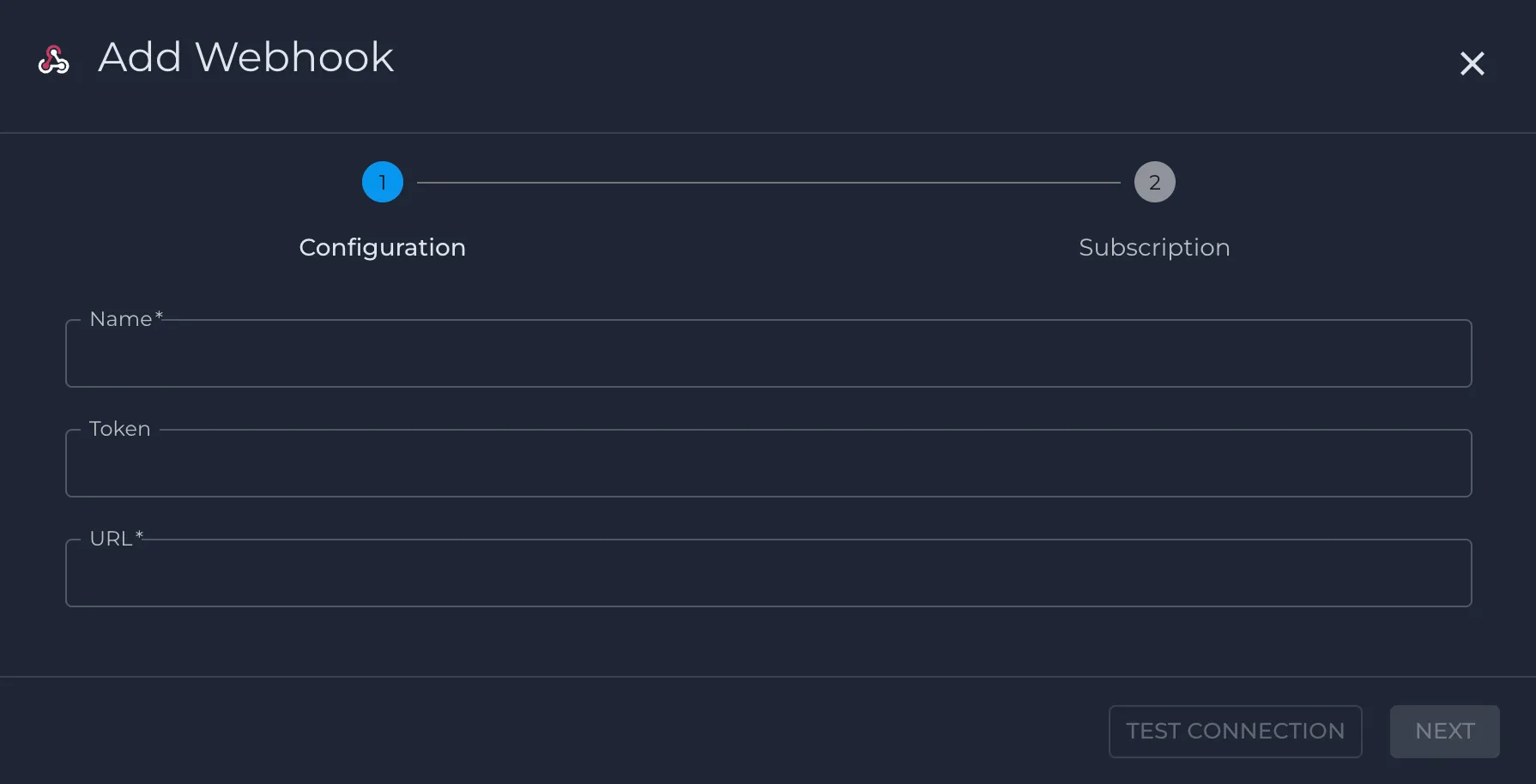
Field | Value |
|---|---|
Name | A descriptive name for the destination, for example Slack - Network Operations |
URL | The Slack incoming webhook URL copied in Step 1 |
Token | Leave empty. Slack incoming webhook URLs already carry the authorization Slack requires |
Repeat these steps for each Slack channel that needs its own destination.
Step 3: Enable alert subscriptions
- In the Nile Portal, go to Global Settings > Integrations > Setup Integration.
- Select Webhook as the delivery method.
- Enable the alert categories you want delivered to Slack.
Available alert categories are:
- Nile Infrastructure
- Nile Service — Service availability, coverage, and capacity
- Infrastructure — DHCP, DNS, RADIUS, and Internet availability
- Application — Application availability and latency
- Security — Wireless intrusion detection
- Client Devices
Subscription selections are saved automatically.
Only alerts that are visible in the Nile Portal are eligible for subscription. Webhook subscriptions apply to the destination, whereas email alert subscriptions are per administrator and must be enabled by each admin individually.
Notification behavior
Nile notifies Slack when an alert is created and again when it is resolved. Repeat notifications for an alert that stays open depend on its severity.
Nile classifies alerts into four severity levels:
Severity | Meaning |
|---|---|
Severity 1 | Critical issues requiring immediate attention |
Severity 2 | High priority issues |
Severity 3 | Moderate priority issues |
Severity 4 | Low priority or informational alerts |
For a Severity 1 alert, Nile follows an escalating notification schedule: an initial notification when the alert is triggered, then at 2, 6, 14, 24, 48, 72, 96, and 120 hours, and every 24 hours after that until the alert is resolved. Severity 1 alerts that are already open continue to notify every 24 hours.
For Severity 2, 3, and 4 alerts, a single notification is sent when the alert is first triggered. No repeat notifications are sent, and repeat notifications are not sent for lower-severity alerts that are already open.
This severity-based approach keeps critical issues visible while limiting overall notification volume.
What the notification contains
Each notification is posted to the Slack channel as a formatted message. The notification includes:
Field | Description |
|---|---|
Alert Status | Whether the alert was created or resolved |
What Happened | Description of the detected condition, including the affected device and serial number where applicable |
Impact | Expected effect of the condition on the network or users |
Severity | Severity level of the alert (1–4) |
Customer | Nile customer (tenant) name |
Location | Site, building, and floor where the condition was detected |
Start Time | When the condition was first detected |
Duration | How long the condition has been active |
For more information | Link to the alert details in the Nile Portal |
How to fix | Recommended remediation steps. Included only for some alert types |
Example notification:
Verify the integration
- In the Nile Portal, open the Slack webhook configuration and click Test connection. This validates that the endpoint is reachable and that the receiving system accepts the payload.
- Confirm that the test message arrives in the intended Slack channel.
- Go to Alerts and open the alerts list to confirm that Nile is generating alerts in a subscribed category.
- Confirm that a new alert in a subscribed category produces a Slack message.
- Confirm that resolving the alert produces a follow-up notification.
- Confirm that the Slack message contains no credentials or other sensitive values.
Run the test connection before relying on the integration for production workflows.
Troubleshooting
No Slack message is received
- Use Test connection in the Nile Portal to confirm the endpoint is reachable.
- Confirm the webhook URL was copied in full and has not been revoked in Slack.
- Confirm the Slack app is still installed in the workspace and authorized for the channel.
- Confirm at least one alert category is enabled for the webhook delivery method.
- Confirm the alert you expected belongs to an enabled category.
- For Severity 2, 3, and 4 alerts, remember that only one notification is sent per alert.